- Postman
- Getting Started with Postman Software
- Introduction to the Interface of the Software:
- Creating the First API Request
- Creating Collection in POSTMAN
- Creating and using variables in POSTMAN
- Set And GetVariables using Scripts:
- Environment in POSTMAN
- Using Quick Script Snippets
- Creating the First API Test
- Debugging the Response
- Running the POSTMAN Request in command line
- Workspace in Postman
- Sharing a collection in POSTMAN
- Getting data from CSV and JSON Files
- Running POSTMAN Collection Remotely
- Adding SOAP Request in POSTMAN
- Refer one data from one response to another API
- Running from JENKINS
Postman
POSTMAN is an API client that is used to develop, share, test APIs. It is also used for creating documentation for APIs. Test suites can be quickly designed using Postman, and also it can store test information to be used in other tests. It is integrated with Plugins, such as Jenkins's, which makes it more powerful.
The Postman can be either download as software and can be installed into your system or it can be added as a chrome extension. We shall see the downloadable software.
Getting Started with Postman Software
To start using POSTMAN, we shall first download the software and install the software. The following are the steps:
Visit the POSTMAN official page & Creating Free POSTMAN account:
Visit the POSTMAN official page https://www.getpostman.com/
After you visit the above page, you should see a Sign in button in the top right corner.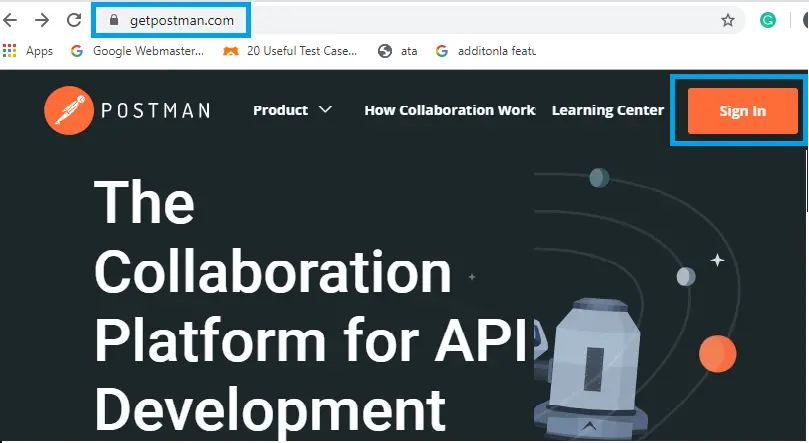
Now click the Sign-in button on the website and you will be navigated to the free account creation page.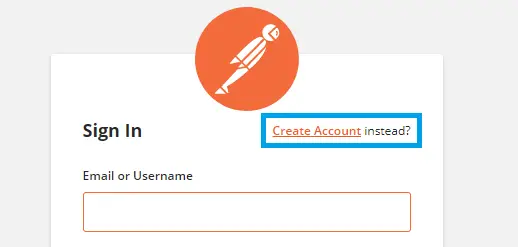
Create your account after filling the necessary details.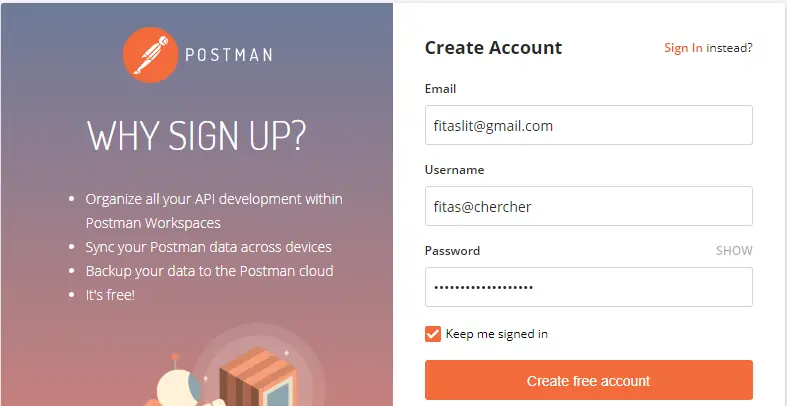
Now after signing in, you must see the page as below: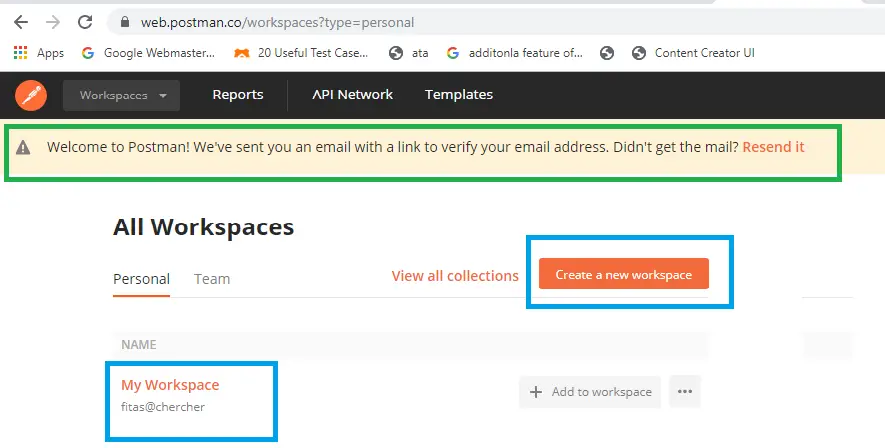
Now, check your email, and you might have received the confirmation email from POSTMAN.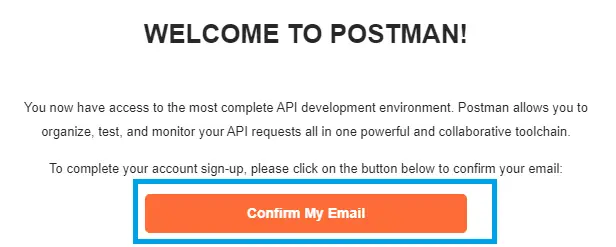
Now after confirming the email, you must see a confirmation page like as below: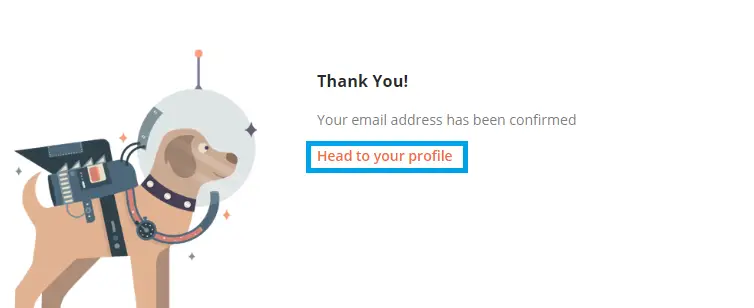
Click on the Head to your profile to get started.
Download the software:
To download the POSTMAN software visit the official page of POSTMAN https://www.getpostman.com/downloads/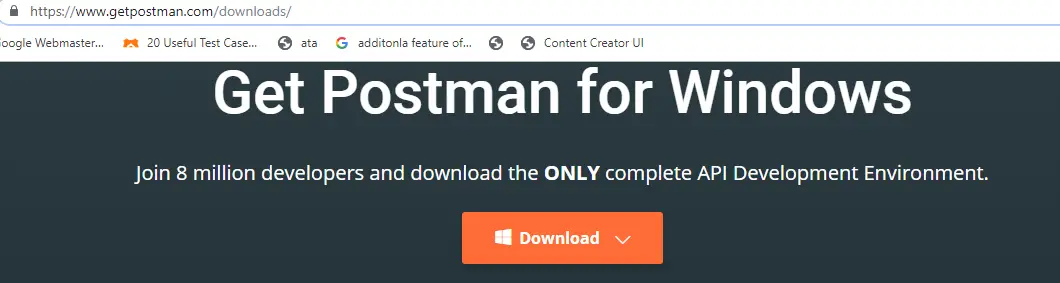
Now, click on the Download button and select the OS in which you want to install the software. I have chosen the 64-bit option. You may choose the 32 bit if you are using a 32 bit OS.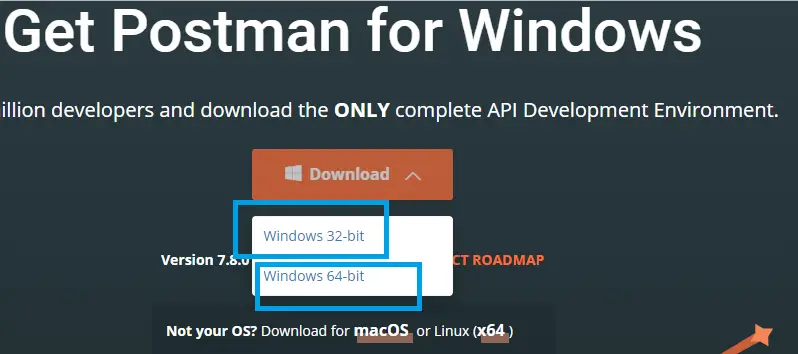
After you select the OS, the software should start downloading, as shown below: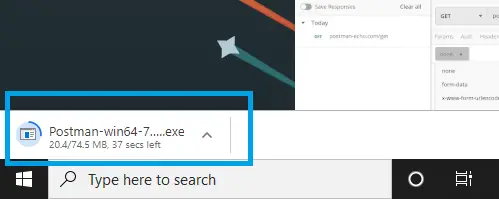
Now, once the download completes, open the file and start installing the software. By default, the software should be inside the downloads folder, if you are using the windows and have not customized your download location on your computer.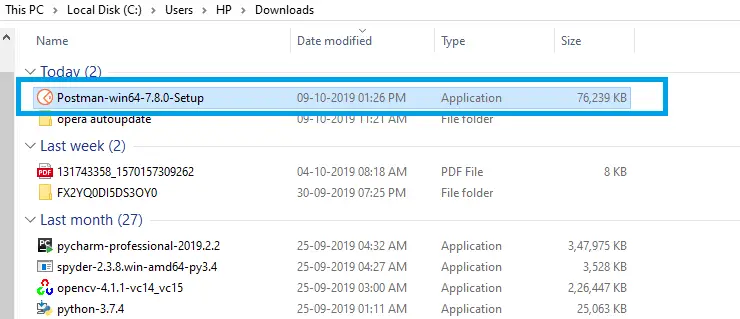
Right-click on the software and choose open to install the software.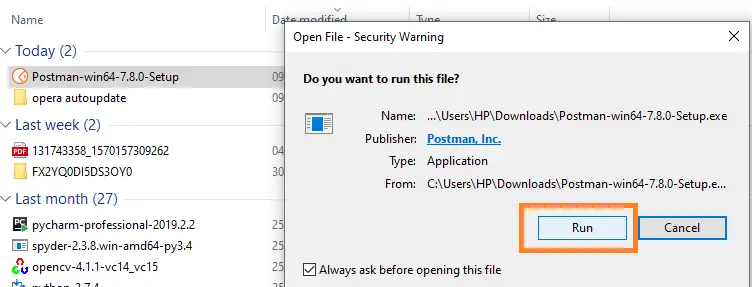
Once installed, sign in with the username and the password, which you used at the time of creating the POSTMAN account. Once signed in, you should see the following page: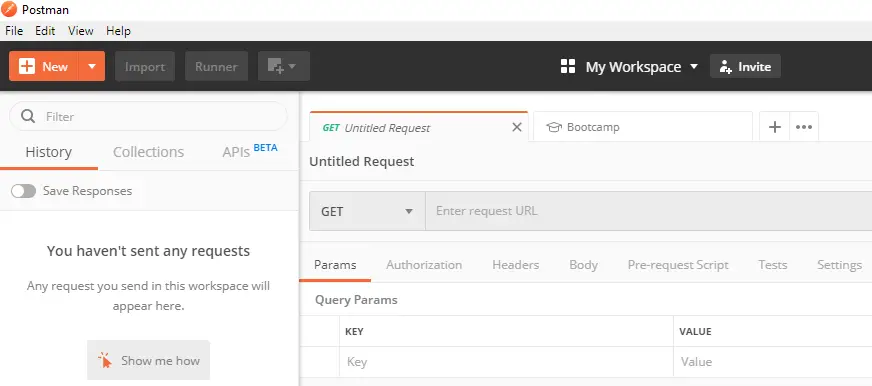
Now, we are ready to use the software.
Introduction to the Interface of the Software:
Click on the POSTMAN icon on the desktop to get started with the software.
By clicking the New button, you can get all the options.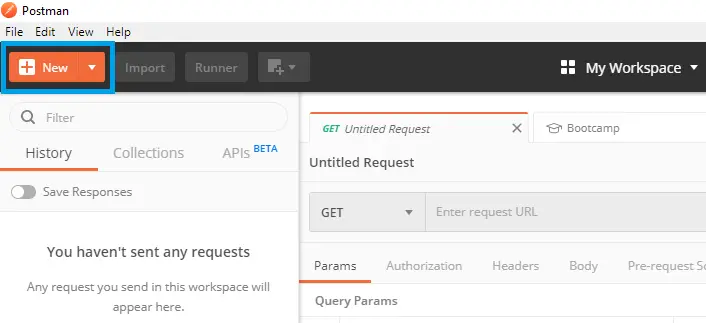
After clicking into the New button, a dialogue box will be displayed as below: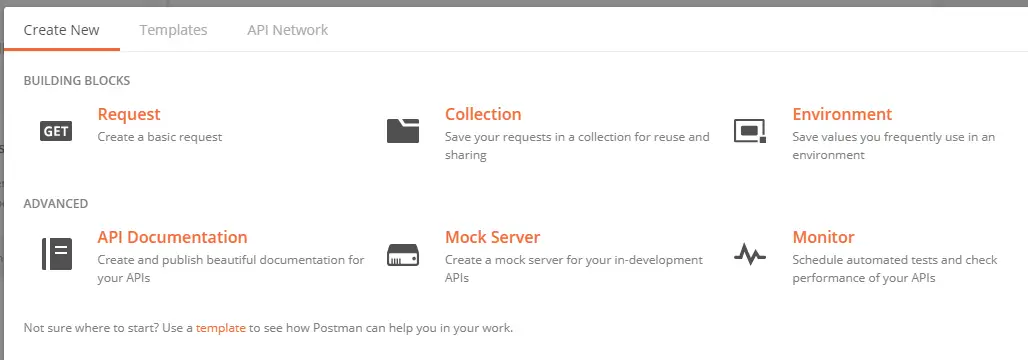
The first tab is the Create New, inside which the following options are there:
- Request
- Collection
- Environment
- API Documentation
- Mock Server
- Monitor
The second Tab is the Templates: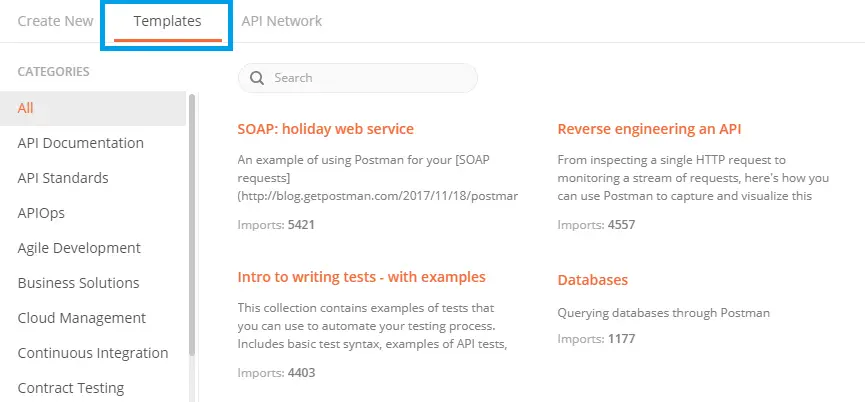
The third tab is the API Network: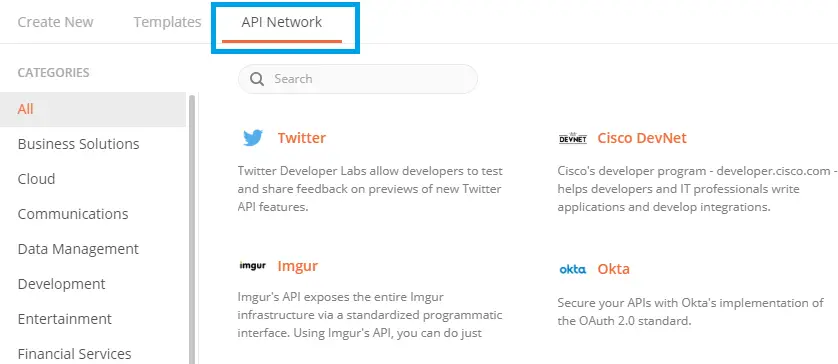
Sections of the Interface:
There are different sections in the interface of the POSTMAN software. Let us see all the sections one by one.
Header Menus
The portion of the interface marked with blue color is the header section, which consists of all the options and all the control buttons for the software.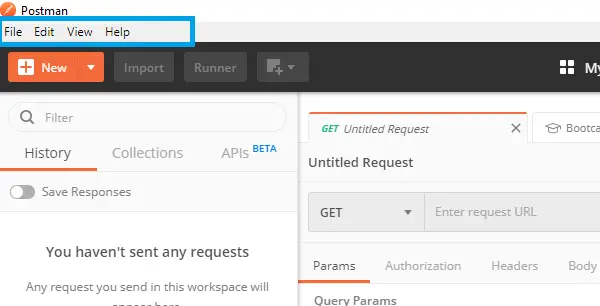
New
The New button is used to open the dialog box, which consists of different shortcuts to templates, collections, documentation, APIs, etc.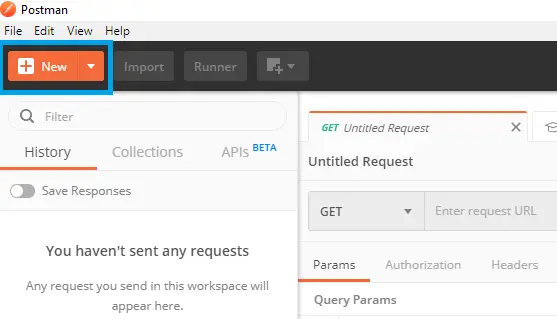
Import
The import button can be used to import collections into the software. There is a facility to drag and drop. The collection files can be either imported from any location or can be dropped into the software interface itself.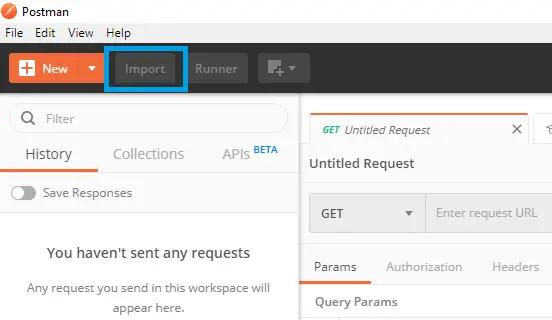
Runner
The Runner button will directly run the collection loaded into the software.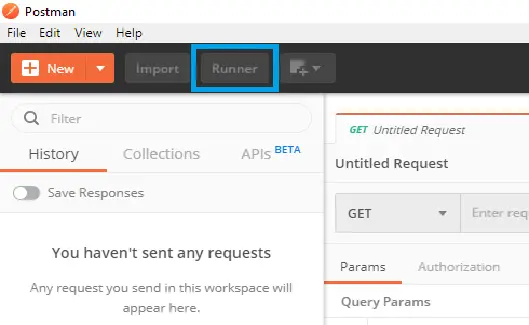
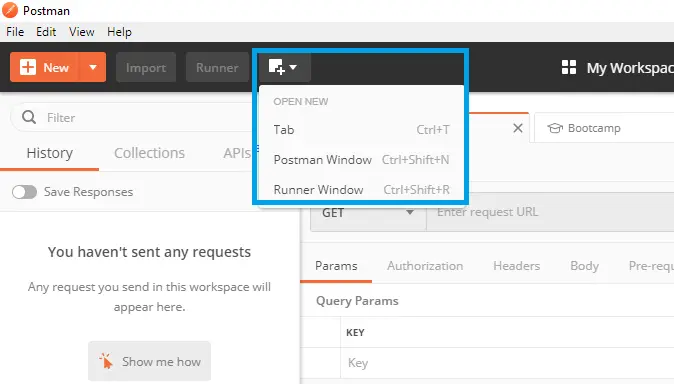
Open New
The below diagram shows all the different options which pop out when the Open New button is pressed. The options available inside it are: (Open new)
- Tab
- Postman Window
- Runner Window
History
The History section is situated under the filter search bar. This contains all the request that was sent or made by the POSTMAN software.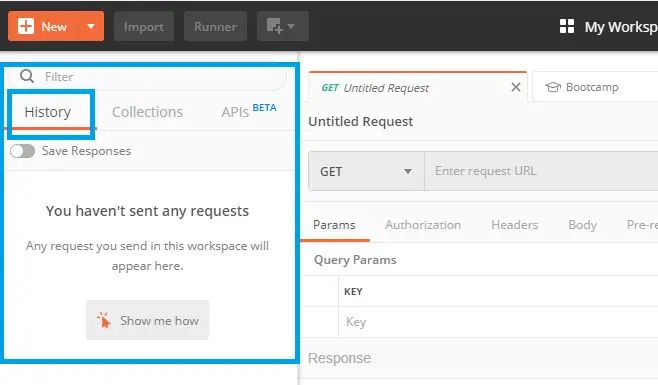
Collections:
The collection helps us to group related requests and thus making them easier to run. This is the section for the collections. When we import any collections or drag and drop any collection into the software, then all the list of the collections will be visible in this section.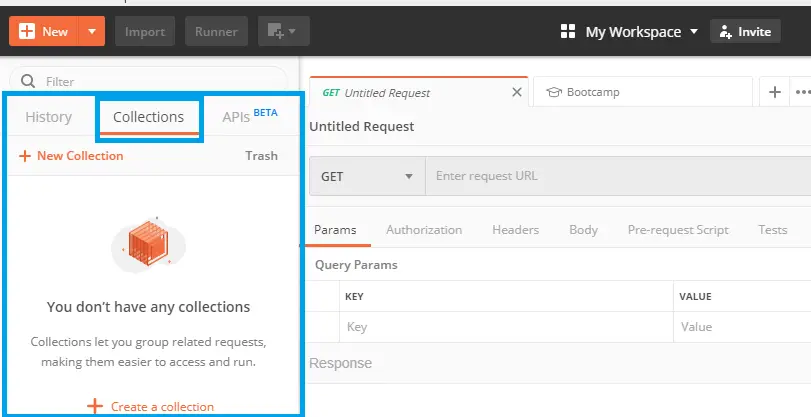
APIs
In this section, all the APIs are listed.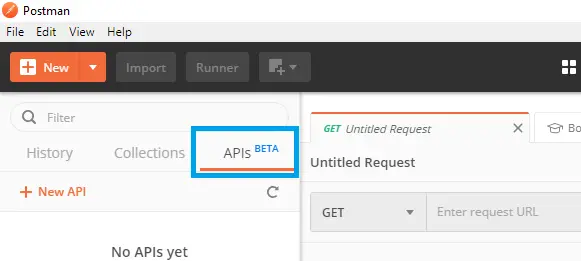
Request Window:
In the Request window, as shown in the below image, all the details and the attributes of the request made by the POSTMAN software will be displayed.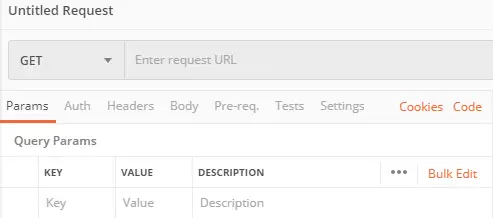
Inside the Request Window, we have details such as- Params, Auth, Headers, Body, Pre-req Tests Settings. And also, the URL bar is inside the request window.
Response Window
In the response window, all the elements that are sent back from the server are displayed. In our case, no request is made, so no response has been received.
Creating the First API Request
In this section, we shall see how to create an API request, run the request, and analyze the response we get from the server.
Below are the steps of creating an API Request:
Create a New Workspace:
To create a new workspace, start the POSTMAN software and click on the My Workspace icon.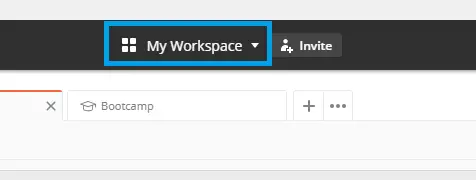
When you click on the My Workspace Button, then you will see a create new option popping out. Click on that, and name a new workspace.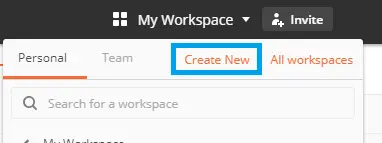
The workspace name can be any name. In my case, I have named it with workspace01. And then, click the Create Workspace button at the bottom.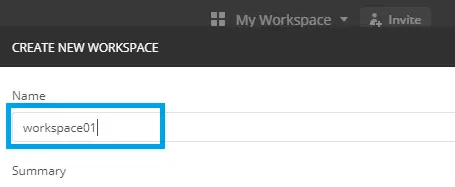
Click the New button on the top left corner of the POSTMAN homepage interface, and once you click the button, a drop-down menu appears that contains all the shortcuts.
Select the request option from the drop-down list.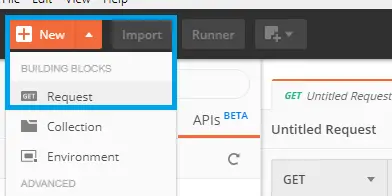
Now, as you click on the Request option, you will be prompted to enter a request name.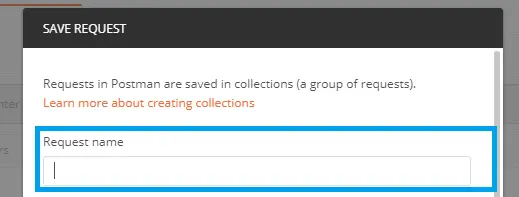
We will be using the website, http://reqres.in for testing the API.
Now, as we scroll down the page (http://reqres.in), you will see that several Requests are listed there. We shall select the Single User. So, click the Single User and then copy the URL from the search bar. And copy the request endpoint.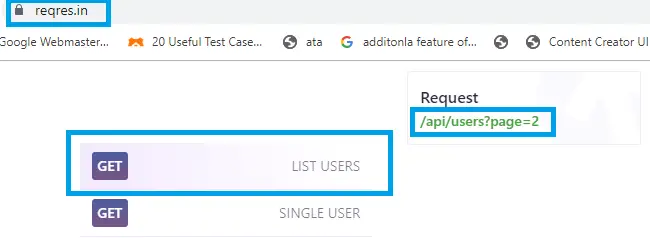
Now open a new tab in the browser type the main URL along with the Request endpoint. Once you press enter after giving the complete link(http://reqres.in/api/users/2) into the URL bar. You must see the response from the server.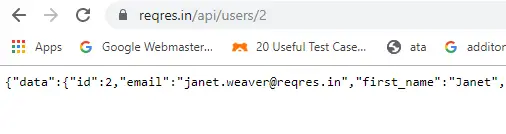
After that, add a name to the Request and create a new collection and save the request and the collection as well.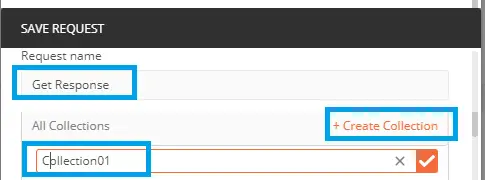
In my case, the request name is the Get Response, and the collection name is Collection01.
Now, copy the request URL(http://reqres.in/api/users/2) and paste it into the URL bar in the POSTMAN.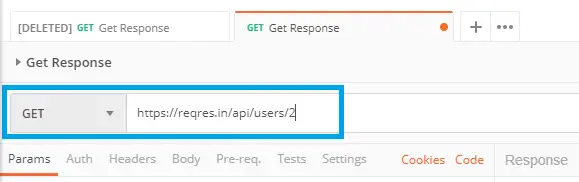
Once done, now simply click the send button.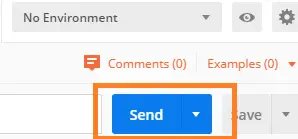
Then, you must see the response as below: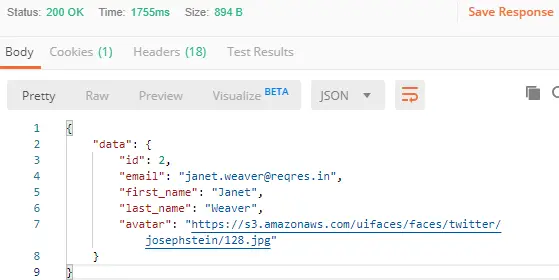
Creating Collection in POSTMAN
POSTMAN Collections are groups of pre-built request that can be organized into folders so that, that can be run independently. Collection can also be shared with other collections. All the APIs requests can be stored and saved inside a collection.
Here, we shall see how to create a collection, create folders inside a collection and how to share a collection. Also, we shall see how to arrange requests inside a group.
To create a collection, open the dialog box by clicking the New button and select Collections. 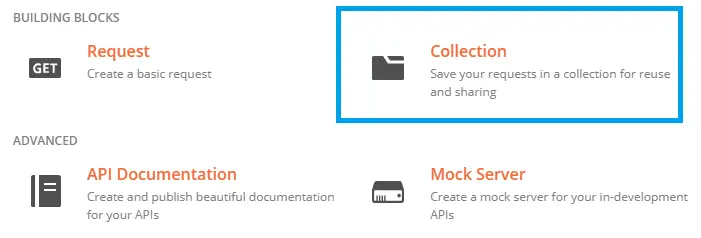
As shown above, select the Collection and the collection window will open. Here, you can create your collection, by merely entering the collection name.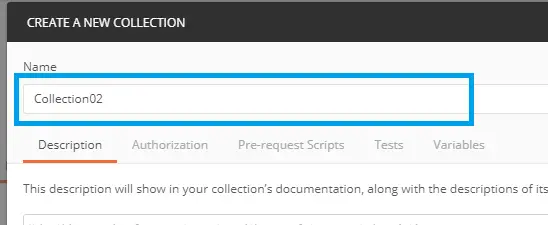
In my case, the name for my Collection is Collection02. In the Collection window, there are different tabs such as the- Description, Authorization, Pre-request Scripts, Tests and Variables.
Now click on the Create Collection Button to generate the collection. It will be an empty collection.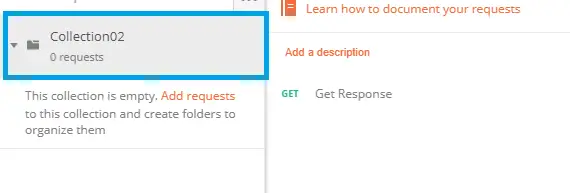
Adding folders into the collection
To create folders inside the collection, click on the collection name and a drop-down menu will appear below the collection name. Select the option called- Add Folder as shown below.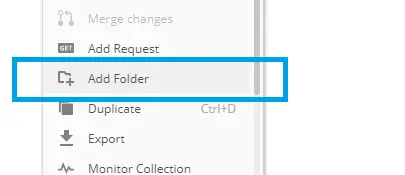
Once the Add Folder option is selected, you will be navigated to a pop-up window to enter the folder name. In my case, the folder name is folder02. Then click on the create button to create the folder.
Running Collection in POSTMAN
To run the collection, we shall take the example of our earlier collection - Collection01, and the API request inside it.
Now, before we start to run the collection, we shall try to add some more requests inside the collection, so that, we can get a more comprehensive view of how a collection is run.
To add more API Request, we shall navigate the website(as we did earlier)- http://reqres.in. And search for a different API Request.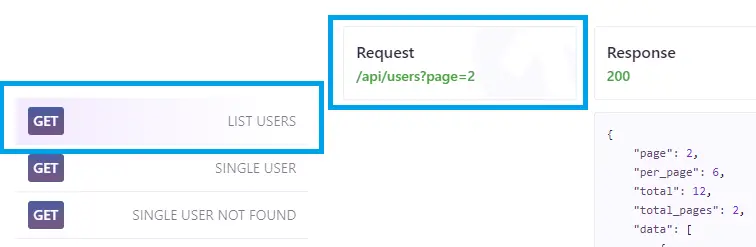
As you can see, this time we have selected the LIST USERS. And so the URL is copied along with the Request end-point of the Request - /api/users?page=2, as shown in the picture. Now paste the same URL, into the URL bar of a new tab in your browser and check whether you get the response as below:
Now, as seen above, the response from the server is received successfully. Now, navigate to the NEW button in the POSTMAN again to open the dialog box and select Request. This is to create a new Request.
Now, create a new folder named GET, inside the Collection - Collection01 and drag and drop the two create requests- GET Response and GET_user_list into the build folder. This is done just to arrange things in a proper way.
Now, navigate to the collection tab and select the collection you want to run. For, my case it is- Collection01.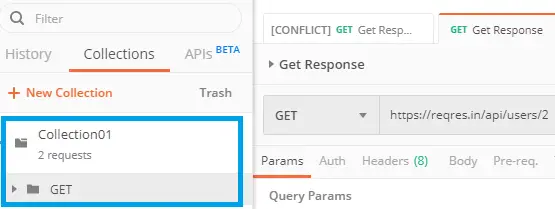
Now, you may open the collection folder to see what are the requests inside it. Then select the right arrow on the right side of the collection name, and you should be able to see the RUN button.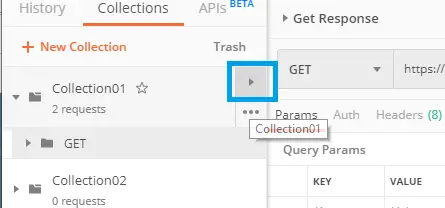
The RUN button will appear once you hit the arrow on the collection.
Then the next confirmation window will pop up. Select the Run Collection button, and you are ready to go.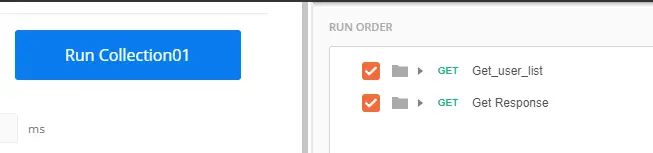
Once, you hit the button- Run Collection01, you should be able to see the below window: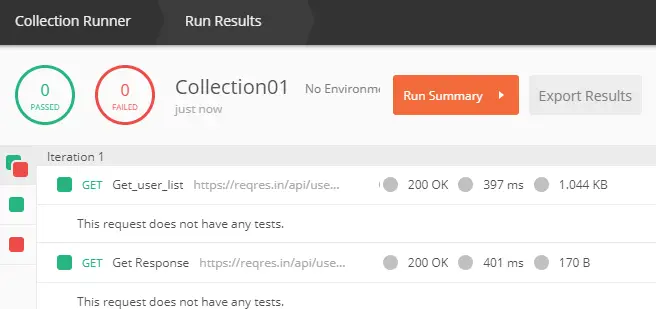
As you can see the output above, the Collection Runner has popped up in a new window, and all the results are inside the window.
The Result window consists of the Request Name, the link visited, the status of the response (which is 200 here, means OK), the time required to get the response (in mili-seconds). And the size of the response data.
Creating and using variables in POSTMAN
Variables are used to store a part of the URL in POSTMAN. Using this concept of storing a part of the URL in a variable and using it in multiple places which can save the time of typing a lengthy URL. This technique can also be used to identify a URL very easily.
In this section, we shall create a variable, use variable, and refer a variable. Variables are used when a part of different URLs is a common text.
For example, two requests which are inside the collection- Collection01 have the first website link in common; just the request end-points are different. Therefore, the first part can be stored in a variable so that, the variable can be used when the website URL is required.
To open the variable section and click the three dots beside the collection name, and then a drop-down list will appear. Select edit from the list.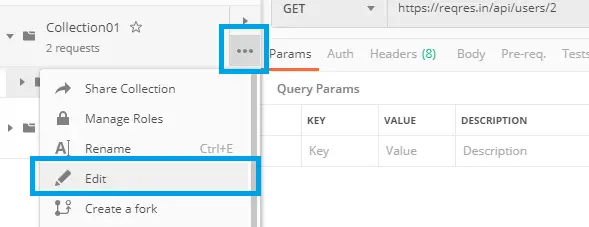
After you select edit, you should see as below: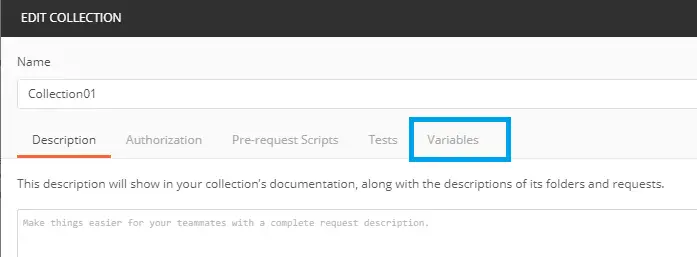
Now, click on the variable tab and you will be asked to enter the key, which is the variable name(anything you want). Now, copy the first part of the URL which is common to both of the requests.
In our case, one URL is: https://reqres.in/api/users/2
And another URL is: https://reqres.in/api/users?/page=2
Therefore, you can see that the URL part https://reqres.in is common to both the above URLs. Therefore, we shall try to store this part of the URL in a variable, and try substituting it inside the POSTMAN software and see whether it works.
To do so, click on the Variables and then name the key(the variable) and then edit the part of the URL into the URL bar. And then select the Update button.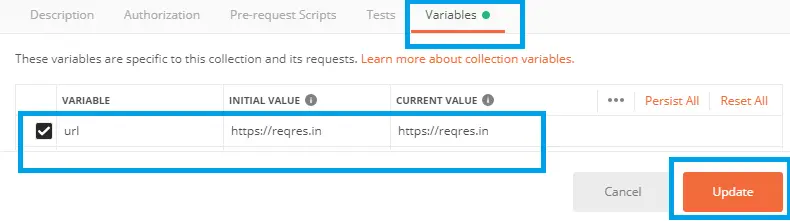
After you have named and updated your variable, go to the URL bar and replace the part of the URL with the variable you declared.
In our case, the variable is the url and so the syntax contains URL between a pair of braces {{ }} 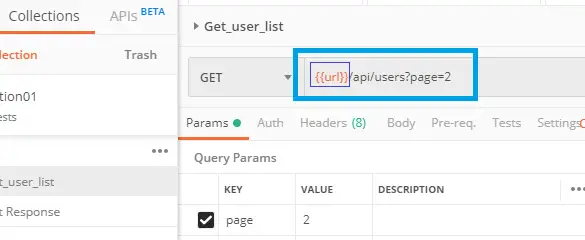
After successful replacement of the variable, you are ready to go. Now, send the request again and it should work the same way it worked earlier.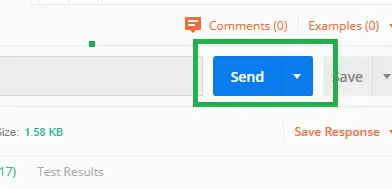
Check the output now: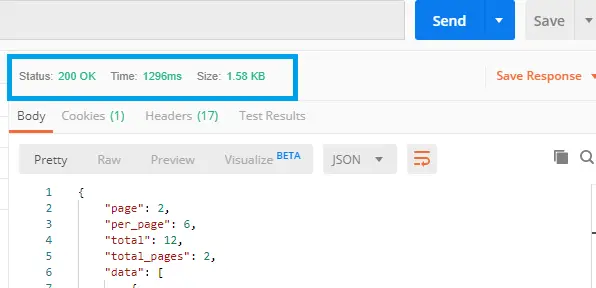
Set And GetVariables using Scripts:
In this section, we shall see how to Set and Get variables using scripts. To write test scripts, go to the Tests tab.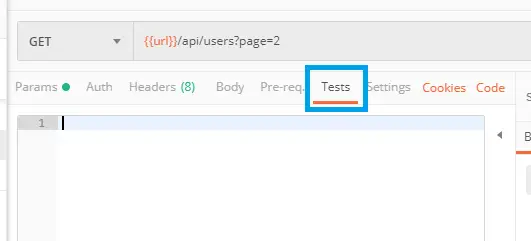
Now, inside the Tests tab, there is a console editor, you can start writing your script here. console.log() is used for printing a specific value.
console.log("Hello World!");
let urlVar=pm.variables.get("url");
console.log("The value for the URL variable is: "+urlVar);
After you click the send button, go to console window (by clicking the view button) and you can see the output. The variable which we named earlier for the URL, can be retrieved using the script.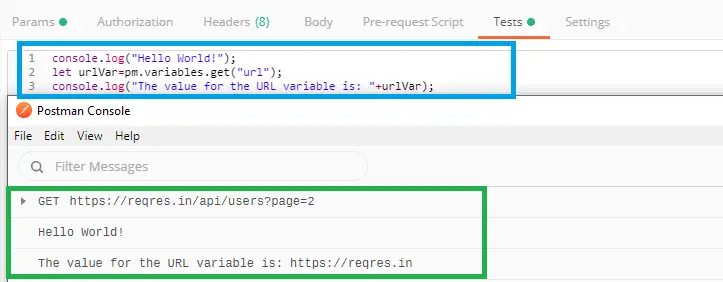
Now, to set variables use pm.variables.set("Variable-name","Variable-value"), And type the following code inside the editor.
pm.variables.set("name","'POSTMAN");
console.log(pm.variables.get("name"));
After you edit the code, then click the send button, and you must see the output in the console.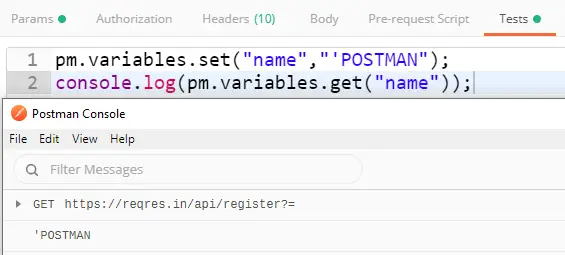
Environment in POSTMAN
Environment in POSTMAN is a key-value pair that can be used in different ways in POSTMAN.
To create an Environment, we shall first create a POST API, and then we shall try to create an Environment. So, navigate to the website for a sample API as we did earlier and choose a POST Request.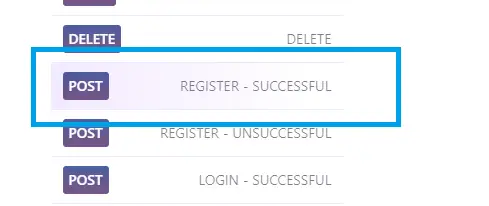
And the same way we shall create a new API request inside the same collection- Collection01, but inside a different folder- POST.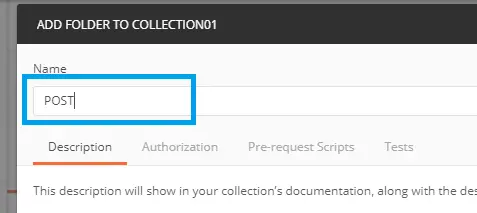
Now, inside the folder- POST save the new API request.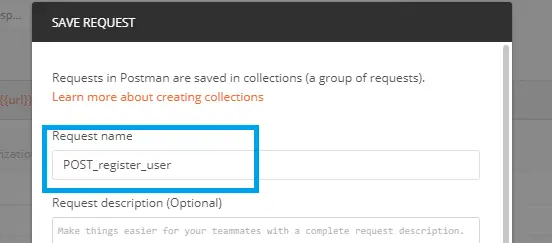
Now, copy the website URL from where the request is taken and paste it into the request URL bar along with the request end-point. This is to create a new request. Once the request is created, do the following things:
- Change the request type into POST
- Open the header tab and edit the key as:
Content-Typeand the value asapplication/json.
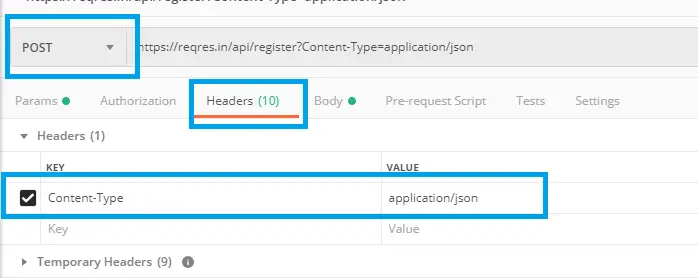
Now, click on the send button.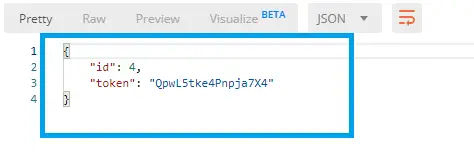
The token as been successfully generated.
Managing Environment
To go to the environment manager go to the gear icon on the top right corner of the POSTMAN software interface.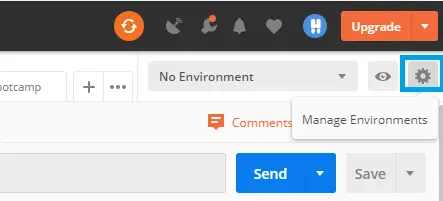
As you open the click on the environment icon, you will be navigated to the page below:
Enter the Environment Name as ENV, or it can be any name. Then take any attribute you want, such as - endpoint, email, and password.
Copy the request end-point from the website and copy the email and the password from the raw code from the request code and paste all the three attributes into the value section of the environment.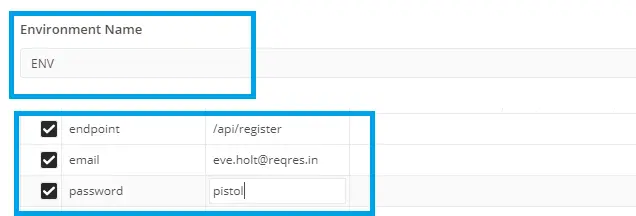
Now, we have created our environment. In this way, not only one but multiple environments can be created using the environment manager of the POSTMAN.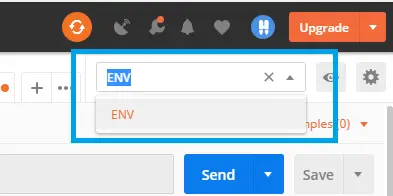
In this way, we can select our environment. Environment has to be selected because every time we cannot keep changing all the required credentials or elements during testing API. All the credentials can be automatically used when we select an appropriate environment.
Using Quick Script Snippets
Snippets are nothing but small scripts that are helpful for testing APIs. To create script snippets, at first we have to create a new request: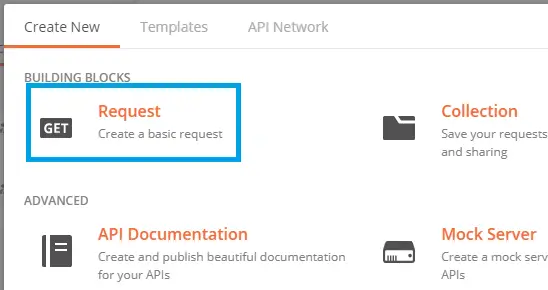
Create a new request by naming it with a suitable name. I have named it as- Script_testing.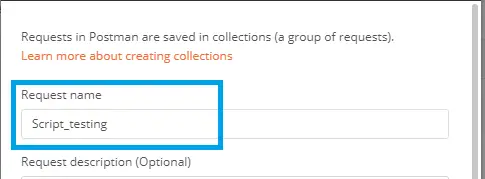
Now, save the request inside the folder GET, which is created earlier inside Collection01.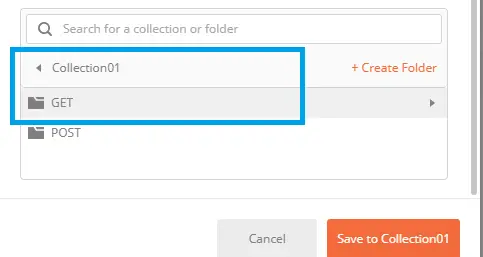
Now, click on the triple-dot beside the collection and select edit.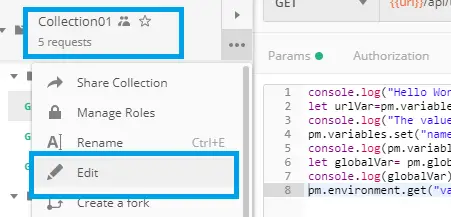
Now, navigate to the pre-request Script tab in the collection level of Collection01 and on the left side a small arrow is visible. Click the arrow to see the snippets.
Now, click on the POSTMAN pre-request script tab:
Now, navigate to the pre-request Script tab in the collection level of Collection01 and on the left side a small arrow is visible. Click the arrow to see the snippets.
As shown above, there are different snippets available under the snippet list, you can click on any of the snippets, and that will be added into the test script editor. This way the time to write scripts can be reduced, and also the possibility of error occurrence is reduced.
Creating the First API Test
What is a Test in POSTMAN?
A Test is nothing but a javascript code that will run after the response of the request has been received from the server. A Test in POSTMAN can be created at different levels. It can be created in folder levels, request level and also in collection level.
TEST in Collection Level.
Test in collection level can be initiated by clicking the triple dot beside the collection name and then select edit: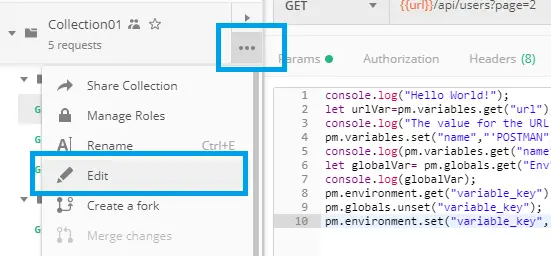
Then navigate to the Test option.
Once, you navigate to the test option, you will see the snippet arrow at the right of the screen. Click on the arrow, and you can select different snippets already there, you can click on the snippets and the code will be automatically generated inside the script editor.
Let us see practically :
I have clicked into two different snippets, and the code is automatically generated inside the editor under the Tests tab.
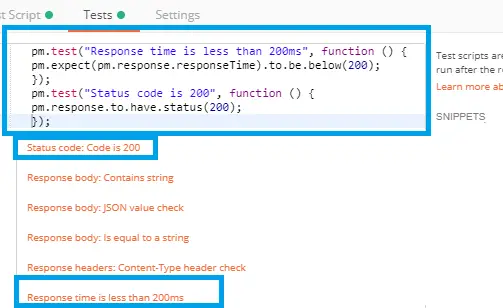
Now, click on the Send button to generate the response:
After the request has been sent succesfully sent and the response is received, the result will be displayed below. In the below image, it can be easily seen that the response time and the status code is checked whether OK or not.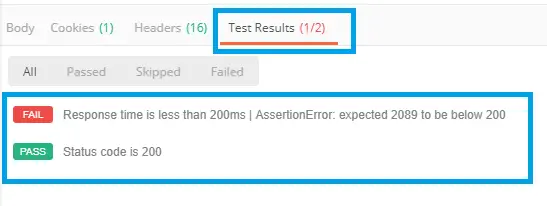
Debugging the Response
When we send a request to the server, a response is sent back from the server. But, in the POSTMAN console window, only the minute details of the response(only the values corresponding to the queries) are visible. To get all the raw details, click on the down arrow attached to the responses inside the console window.
Below you can see the arrows are marked with orange color. Once you click on these arrows, the complete details of the responses will be visible.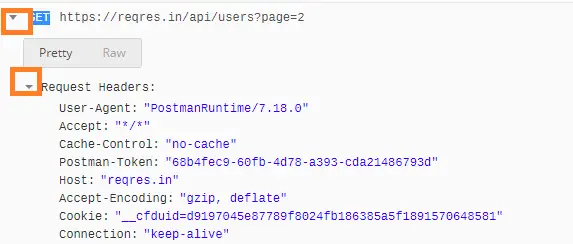
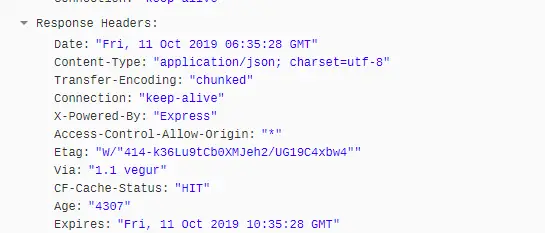
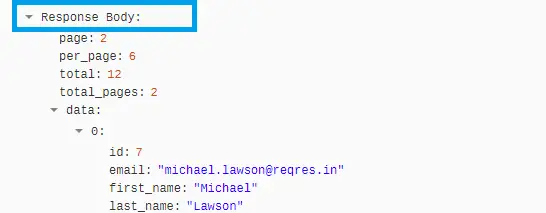
There are different headers and details of the response, inside the console window. They are- Request Headers, Response Headers, Response Body, etc.
Request Headers : 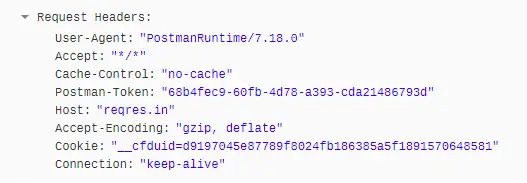
Response Headers :
Request Body :
Getting started with the Developer Options
After you have clicked on the send button, Click on view and then select developer options: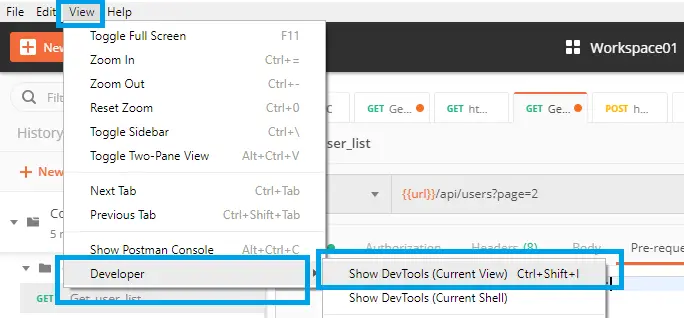
Once done, you should see below. Select the option Console to see the details.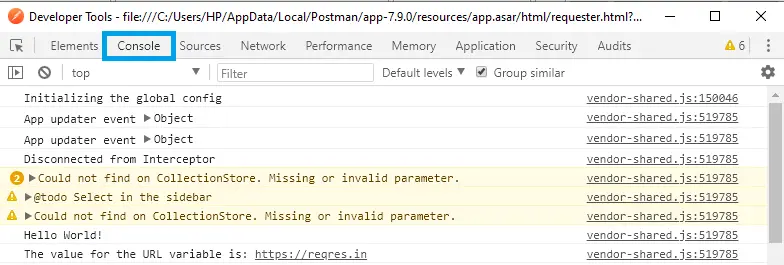
Running the POSTMAN Request in command line
The way we run POSTMAN in its own user interface, the similar way it can be run in the command prompt itself. To run POSTMAN in the Command line, the nodejs should be installed into your system.
So, let us install nodejs . Simply type nodejs into the Google search bar, and you should see the official site on the top list itself. Download nodejs for your system.(64 bit or 32 bit).
Download the nodejs directly: https://nodejs.org/en/download/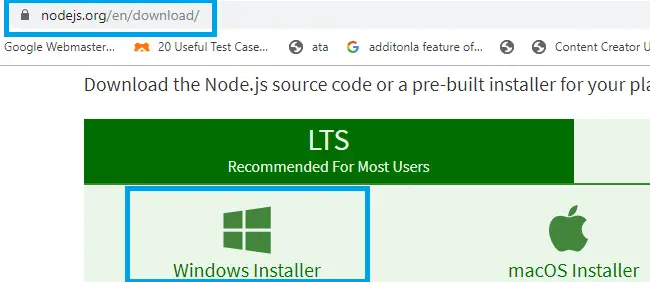
Click on the Windows installer, if you are using Windows Machine. And then a .msi file will be downloaded. Open the file location and run the file to start installing the software.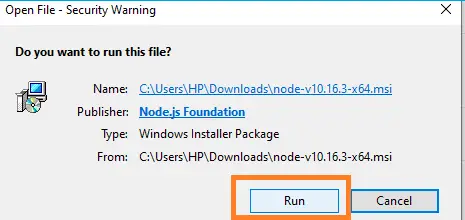
Once, the software has finished installing. Open the Command prompt and type the following to see whether it is working.
Type: node -v and hit enter.
Type: npm -v and hit enter.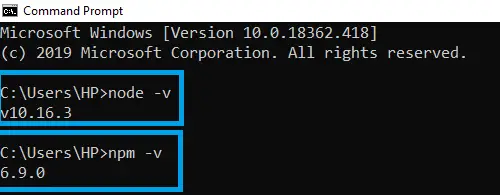
Once done, install Newman. To install Newman, just type: npm install -g newman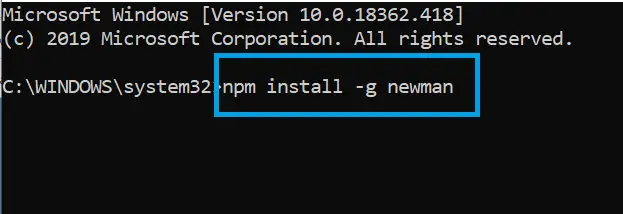
Then, after you hit an Enter, the installation process must start in the command line itself.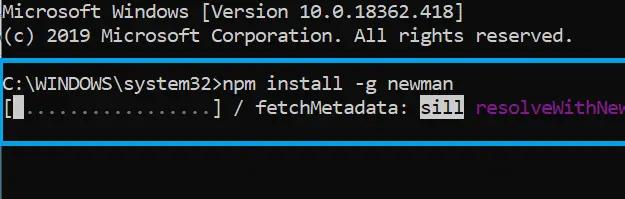
Now, before starting the Test in the command line. Go to the POSTMAN software and export the collection(which one you want to run) as a json file.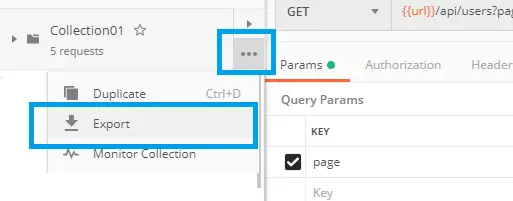
Now, once you click on the Export option, you must see different versions that are available for export, the recommended one should be used.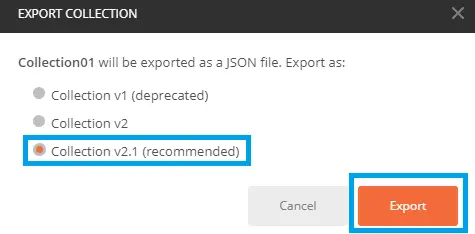
And now, click the Export button.
Create a new folder on the desktop as you like. I have created a folder called- mycollection. And save the json file there. I named the json file as Collection01.json.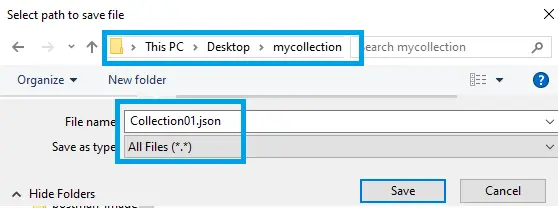
Now, when the files are saved inside you create folder. (mycollection). Now, navigate to the same folder inside the command prompt.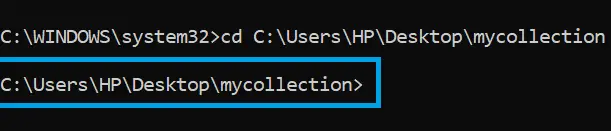
Now, run the command as(syntax): newman run collection_name.json.
Actual Command: newman run Collection01.json.
After running the command, you should see the screen as below: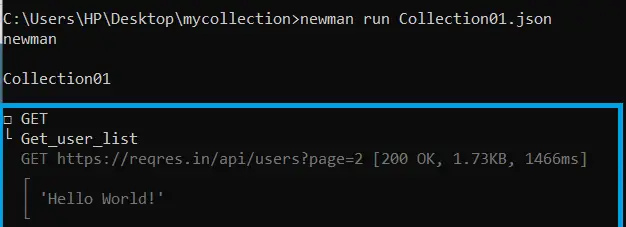
In the above image, you can see the status code: 200 (which means okay), the size of the response is 1.73 KB and the response time is 1466ms.
In case, there is some error in the collection script, the error is going to be displayed. For example, in my case, the error is- I did not put a URL in the URL bar of a request and so, the request cannot be completed. In that case, it produces error as below: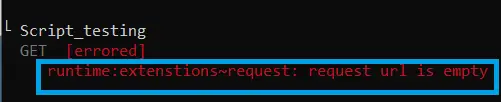
Also, the summary of the response of the request will also be displayed: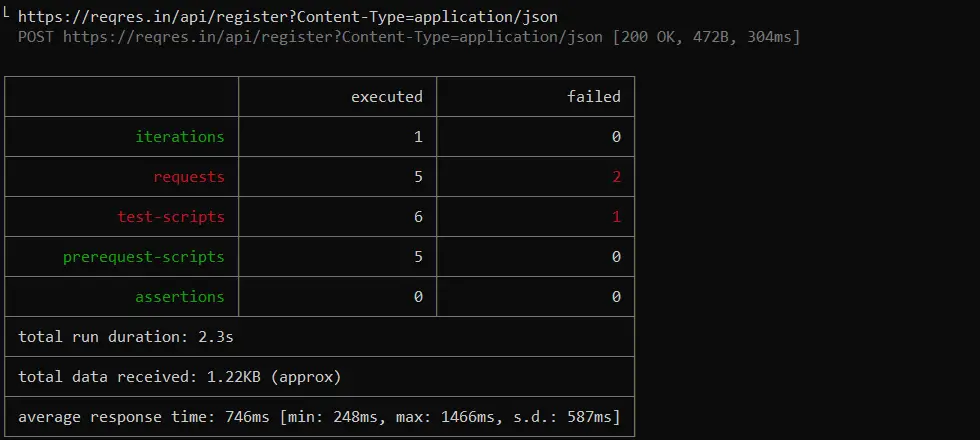
Workspace in Postman
Workspace is that space in the POSTMAN software where you can create, manage, group, and organize the API Collection. The Workspace option is available on the homepage of the software itself.
There are two different types of Workspaces in the POSTMAN software. One the personal and the other is the team. We shall see only the personal, as the team workspace is available only in the pro version of the POSTMAN software. 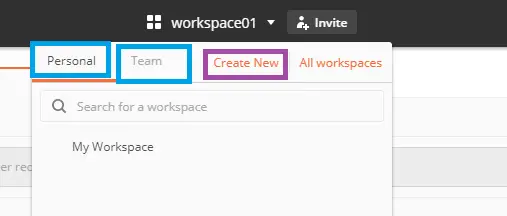
To create a new workspace, simply click on the Create New option, as shown in the above image. Enter a name for the workspace and select the type as personal.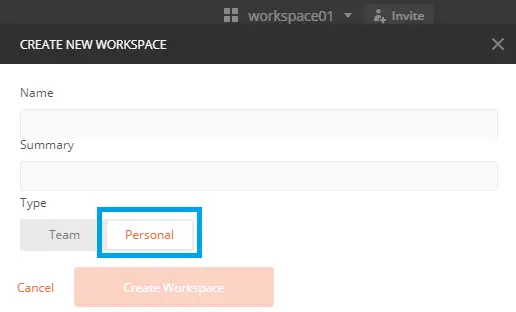
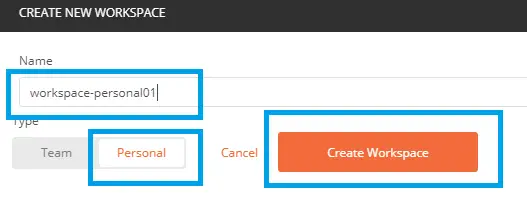
Now, once you click on the Create Workspace button, your workspace is created and as long as you are inside the workspace, all the API requests or API collections you write are under the same workspace.
To, add a collection in your current workspace from a different workspace :
Navigate to any of the workspaces you want and then, click on the Browse option which is on the bottom-right corner of the POSTMAN screen.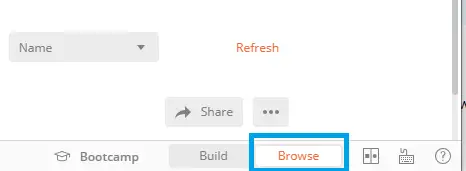
After clicking on the Browse option, you will be able to see all the collections of the current workspace.
Now, click on the option Add to Workspace, 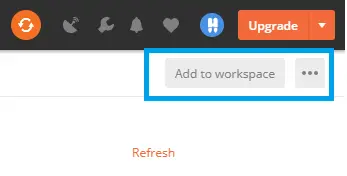
After you click into the Add to Workspace, you should be able to see a drop-down button called Source Workshop. And select, any workspace you want. I have selected, My Workspace.
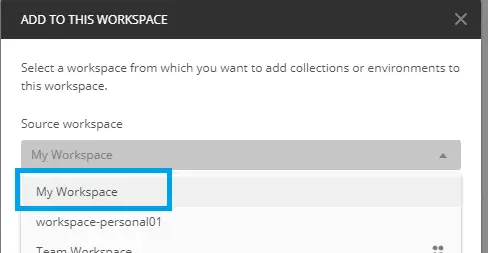
Now, you select a collection, you must see this below the window where you can select collections. You can select some collections or all collections.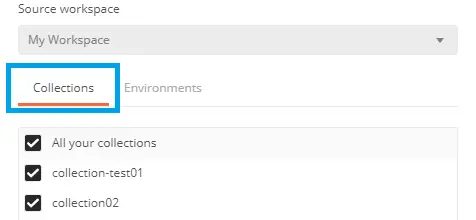
After you have selected the collections, click on the Add to Workspace button.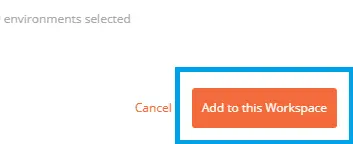
Once, you click into this button, all the collections you selected will be added to your current workspace.
Deleting a collection from workspace
To delete a collection, simply click on the triple-dot present on the right side of the collection name.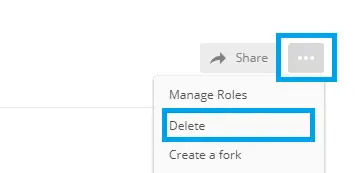
Sharing a collection in POSTMAN
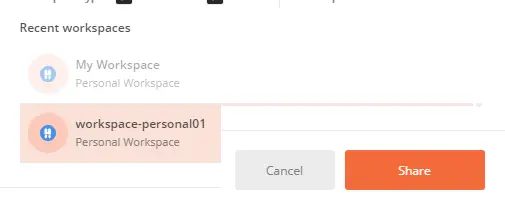
A collection can be made common to different workspaces. Click on the share button(along with the triple-dot) and then share the collection to any of the workspaces you want.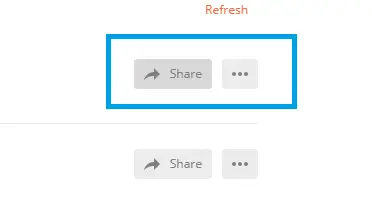
Getting data from CSV and JSON Files
In this section, we shall see how we can create variables in POSTMAN and then get those variables from a CSV file. A CSV file is a file which contains all the values separated by a comma(,). And so the CSV is the acronym for comma-separated values.
First, create global variables that can be substituted in the request URL and in the body. To create global variables first go to the manage environment icon on the top-right corner on the homepage of the POSTMAN software. And then, go to globals and input the variables.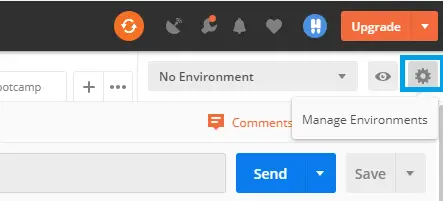
Then, go to globals: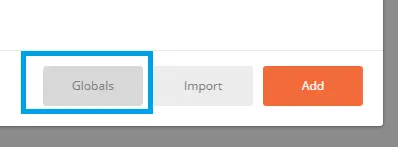
Now, enter the variable names and enter the corresponding values. I have named my variables as- endpoint, email, and password.
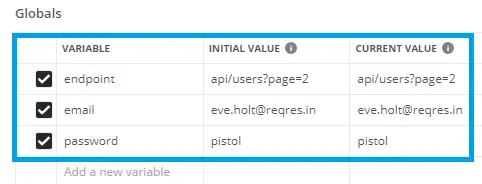
Now, go back to the request page and then replace the endpoint values with the variable name in the URL bar. And also replace the values in the body with the appropriate variable name.
Now, save and send the request and see whether the request is generating the same response.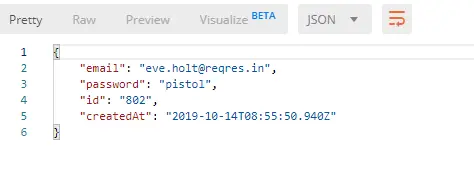
Now, you have seen that variables can be used in request URL as well as in the body.
Now, we shall see how to get the same values from a CSV file. That is we shall create a CSV(Comma Separated Value) file and will have some values like: end-point, email and password.
Now, just go to any folder or location of your computer and create a file called data01.csv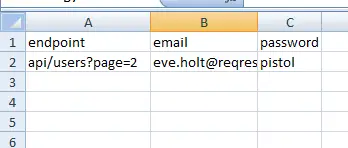
Now, save the file in any location you want and reopen in any text editor and just put a (,) after all the values inside. This is done to indicate a CSV(comma-separated value) file. In case, not separated by a comma, there can be a format related error at the time of running the collection.
I have used notepad++ software to open the file and edit it.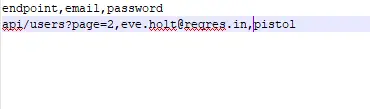
Now, to the collection runner and address the CSV file there: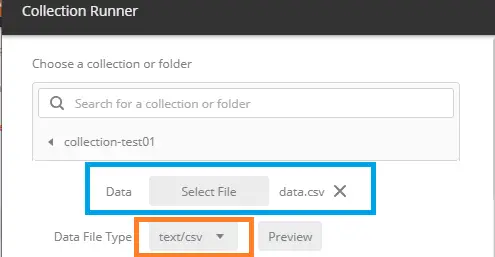
Now, run the collection by clicking the Run Collection button on the same page.
Now, the response, along with all the details can also be exported into any folder you want. Just click on the export button on the top-right corner of the collection runner page and export the file.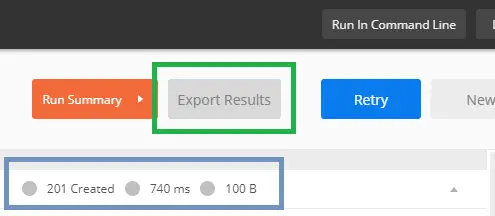
Now, the location, you selected at the time of saving, check on that location for your exported file.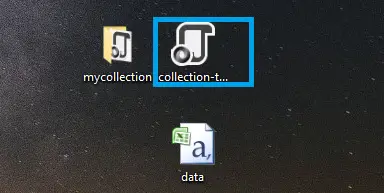
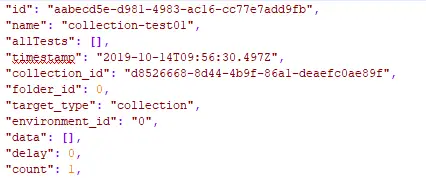
Similarly, the way to import data from a json file is also the same. Just write the script in a text file, save as a json file, and address the file in the collection runner.
This is how a json file looks like. There are three values- endpoint, email and password.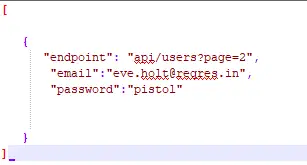
Now, select your file in the Collection runner window: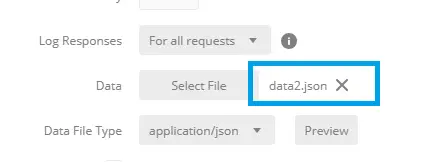
The report file can be exported in a similar way as we did.
Running POSTMAN Collection Remotely
To run a POSTMAN Collection remotely, just go to the collection you want to run and select the triple-dot button right to the collection name. In the options, you will get share button.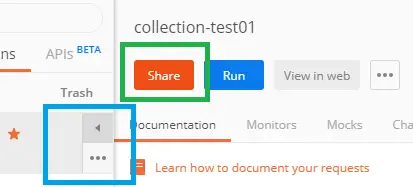
Click into the button and you must see a window popping out. Select the Getlink button from there.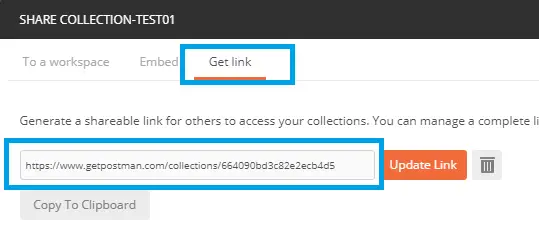
Now, copy the link and go to your command prompt.
Now, type: newman run your_copied_link. And hit enter.
Output :
C:UsersHP>newman run https://www.getpostman.com/collections/664090bd3c82e2ecb4d5
newman: Newman v4 deprecates support for the v1 collection format
  Use the Postman Native app to export collections in the v2 format
newman
collection-test01
→ new01
  POST https://reqres.in/api/users?page=2&[email protected] [201 Created, 690B, 1740ms]
┌─────────────────────────┬─────────────────────┬─────────────────────┐
│                         │            executed │              failed │
├─────────────────────────┼─────────────────────┼─────────────────────┤
│              iterations │                   1 │                   0 │
├─────────────────────────┼─────────────────────┼─────────────────────┤
│                requests │                   1 │                   0 │
├─────────────────────────┼─────────────────────┼─────────────────────┤
│            test-scripts │                   1 │                   0 │
├─────────────────────────┼─────────────────────┼─────────────────────┤
│      prerequest-scripts │                   1 │                   0 │
├─────────────────────────┼─────────────────────┼─────────────────────┤
│              assertions │                   0 │                   0 │
├─────────────────────────┴─────────────────────┴─────────────────────┤
│ total run duration: 2.2s                                            │
├─────────────────────────────────────────────────────────────────────┤
│ total data received: 100B (approx)                                  │
├─────────────────────────────────────────────────────────────────────┤
│ average response time: 1740ms [min: 1740ms, max: 1740ms, s.d.: 0µs] │
└─────────────────────────────────────────────────────────────────────┘
As shown above, all the details are displayed in the command line itself.
Adding SOAP Request in POSTMAN
Go to the Google Search bar and type: wsdl country info. Then click on the first link or click the link: http://webservices.oorsprong.org/websamples.countryinfo/CountryInfoService.wso?WSDL. After clicking the link, you must see as below: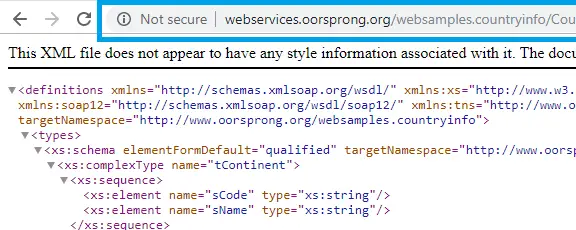
Then add an extension into the chrome called: Wizdler extension.
Once, you have added the extension into the chrome, open the above SOAP link again and then click on the extension.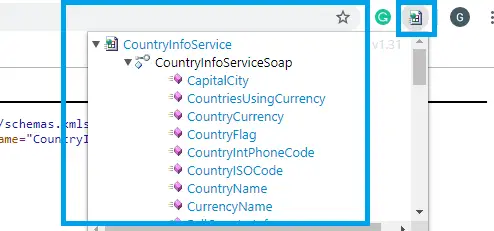
Now, select any of the options under the Country info service. I shall consider the first option, CapitalCity. As you click on the capital city, you must see the below page: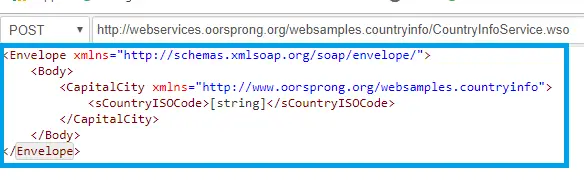
Now, in change the [string] into IN. (Country Code). And edit the code into the body of the request.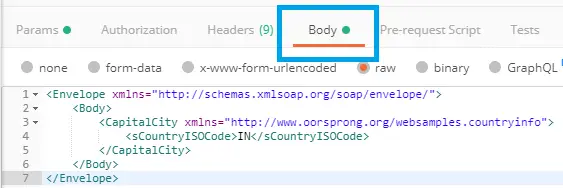
<Envelope xmlns="http://schemas.xmlsoap.org/soap/envelope/">
    <Body>
        <CapitalCity xmlns="http://www.oorsprong.org/websamples.countryinfo">
            <sCountryISOCode>IN</sCountryISOCode>
        </CapitalCity>
    </Body>
</Envelope>
Now, click on the send button and you should see as below:
<?xml version="1.0" encoding="utf-8"?>
<soap:Envelope xmlns:soap="http://schemas.xmlsoap.org/soap/envelope/">
    <soap:Body>
        <m:CapitalCityResponse xmlns:m="http://www.oorsprong.org/websamples.countryinfo">
            <m:CapitalCityResult>New Delhi</m:CapitalCityResult>
        </m:CapitalCityResponse>
    </soap:Body>
</soap:Envelope>
As above you can see that the IN has been changed into New Delhi.
Refer one data from one response to another API
It is possible to get the data from one response of an API and fetch the same data into a different API. Now, let us see how you can do it.
First of all, you have to create two different requests. I shall use the same collection, and inside it I shall create two API requests. One is the GET type and the other is a POST type. The way to create the API request is the same. Visit the same link- https://reqres.in/. And select the requests.
For the first API request, select the GET: List User. Then copy the URL and also the request endpoint and then create the request. (This is your first request).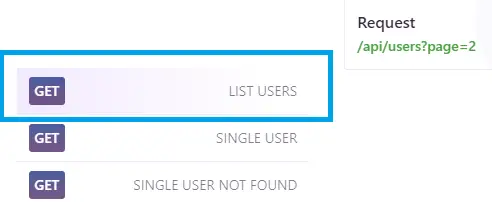
Now, paste it into the URL bar of the first request and create your first request and name it. I have named it as: list-user.
Now, create the second request. Visit the link: https://reqres.in/ And then select the PUT: Update.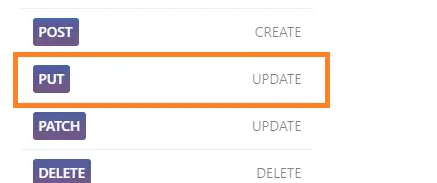
Copy the URL and the request end-point and paste it into the URL bar of your second request. I have named it as: update-user.
Now, you have created both the requests.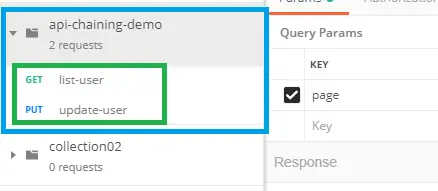
Now, the next step is to parameterize the value in the body section of the request. Go to the second request (update user) and navigate to the body section and then select the raw. Then select a field and replace it with a variable.
So, my original content of the body was:
{
    "name": "morpheus",
    "job": "zion resident"
}
And now I have to change the morpheus into username01.
{
    "name": "{{username01}}",
    "job": "zion resident"
}
Now, the username01 is a variable and has to be updated as a global variable or environment variable. I shall select the environment variable.
To set an environment variable to go to the Manage environment (gear icon) in the top-right corner or create a new environment by clicking on the New button. 
Now, click on the send button and see the output. As you can see below, the name which morpheus earlier is now changed to rahul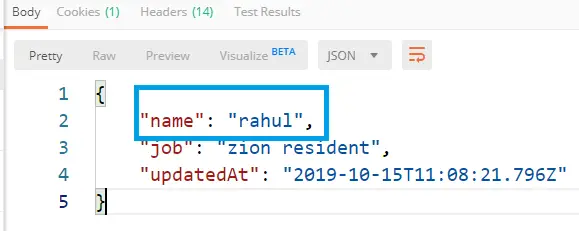
Fetching data from API Response
Now, to fetch the data from the API response, navigate to the first API response. And go the Tests option. And edit the below code there:
bodyData = JSON.parse(responseBody)
value = bodyData.data[3].first_name
console.log(value)
The data[3].first_name is the path of the first name. So, to get the path, visit: http://jsonpathfinder.com/ and then paste the response test into the editor of the website and then navigate into the right-side of the same page to get the path: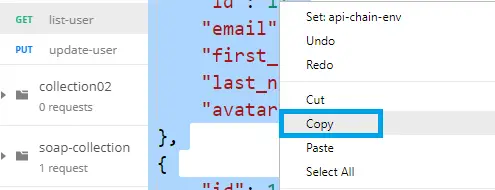
Now, paste it into the json Path finder.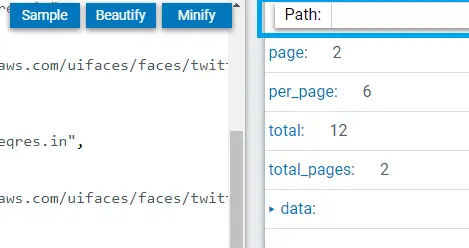
Now, click into data, of the attributes and the corresponding path will be available above in the path bar. Then copy the path.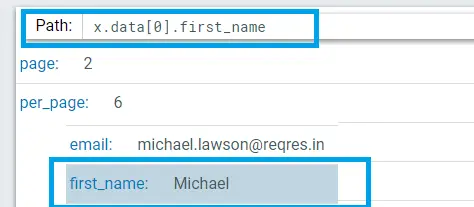
Now, also you can set variables as Global Variables. As there are different snippets available into the POSTMAN interface itself, you can use it simply and write the code for Global Variable.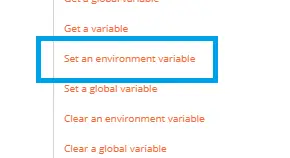
Now edit the below code into the Text section of your second API request:
bodyData = JSON.parse(responseBody)
value = bodyData.data[3].first_name
console.log(value)
pm.environment.set("username01", value);
After that, save it, and click on the send button. And now check into your current environment, whether the variable has automatically taken the value: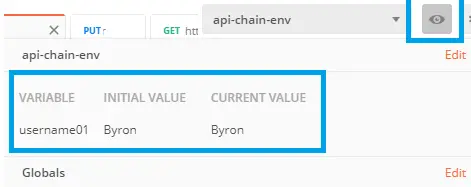
............................
Running from JENKINS
In this section, we shall see:
- How to setup job in Jenkins.
- How to run POSTMAN from Jenkins.
Before you start using Jenkins, the Jenkins software must be installed in your system.
Download Jenkins: Visit the official page of Jenkins: https://jenkins.io/download/
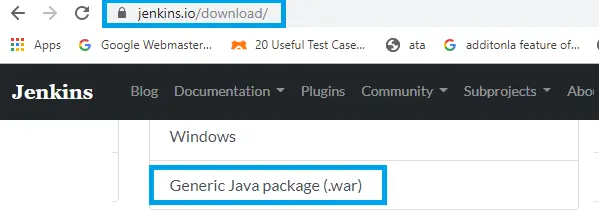
Now, click and download the .war file. (for windows users).
Once the file gets downloaded, just create any folder on the desktop(optional) and move the jenkins.war file into that folder.
I have named my folder as jenkins.(you may use any name.). Now open the command prompt and change the path to the same jenkins folder directory.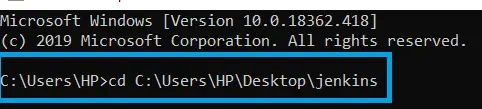
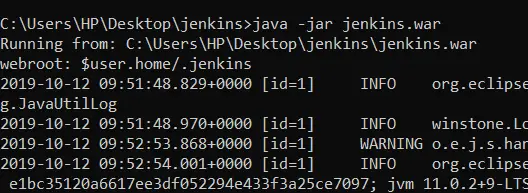
Now, type the following command: java -jar jenkins.war.
Now, you should see that the Jenkins set-up has started in the command prompt itself.