

Selenium interview questions
How to handle HTTPS website in selenium? or How to accept the SSL untrusted connection?
Using profiles in firefox we can handle accept the SSL untrusted connection certificate. Profiles are basically a set of user preferences stored in a file.
FirefoxProfile profile = new FirefoxProfile();
profile.setAcceptUntrustedCertificates(true);
profile.setAssumeUntrustedCertificateIssuer(false);
WebDriver driver = new FirefoxDriver(profile);
How can we find all the links on a web page?
All the links are formed using anchor tag 'a' and all links will have a href attribute with url value. So by locating elements of tagName 'a' we can find all the links on a webpage.
List linksWithTag = driver.findElements(By.tagName("a"));
List linksWithXpath = driver.findElements(By.xpath("//a"));
List linksWithXpath = driver.findElements(By.xpath("//*[@href]"));
List linksWithCSS = driver.findElements(By.cssSelector("a"));
How to get the number of frames on a page?
We can find the number of frames or any element on a page using the findElements() method in selenium.
The trick here is with XPath or the tagname if we create an XPath that matches all the elements, then we can find the number of elements present on the page using the size() method present in List.
WebElement elementName = driver.findElement(By.LocatorStrategy("LocatorValue")).size()
//for frames
//with xpath
WebElement numberOfElements = driver.findElement(By.xpath("//iframes")).size();
//with tagname
WebElement numberOfElements = driver.findElement(By.tagname("iframes")).size();
How do you check whether the field is editable or not in selenium?
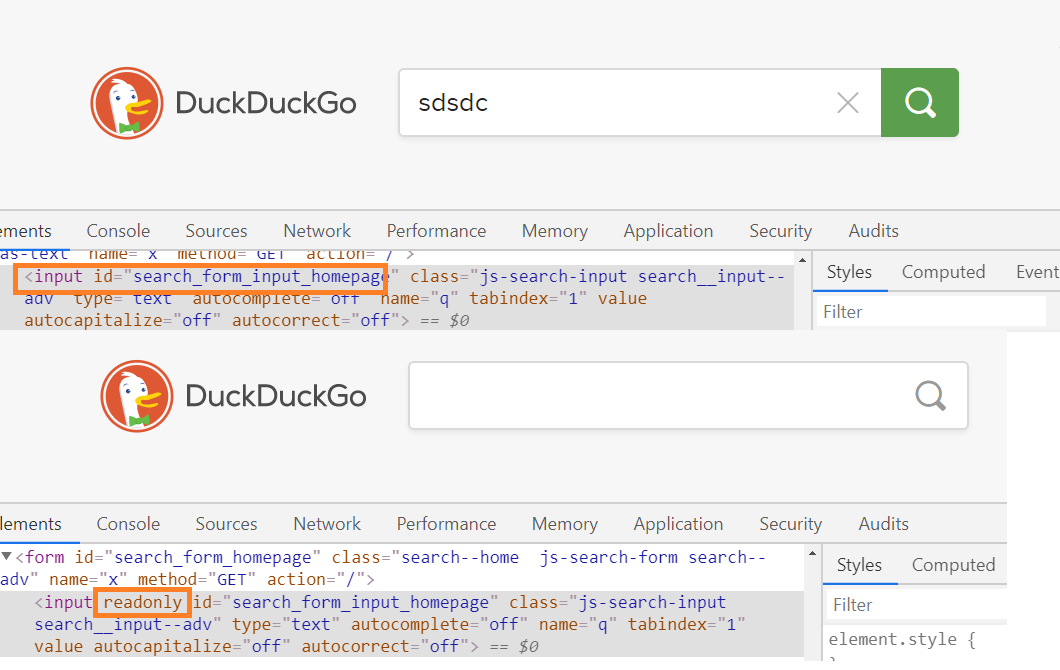
In HTML there is an attribute called readonly; if the user mentions it in the HTML of the element then the element becomes non-editable at the same time we can set it to false or true.
If true then the element is non-editable but if set to false then it is editable.
In the below code if the result is an empty string or true then the element is non-editable otherwise editable.
booelan result = driver.findElement(By.name("Name Locator")).getAttribute("readonly")What is the difference between error and exception?
The basic difference between the error and exception are:
- An error cannot be handled but we can handle the exception
- Error terminates the java session but exception won't
- Most of the errors are system-related but exceptions are related to the user code.
- StackOverFlow is an example of an error, NullPonterException is an example of an exception.
How to exclude a particular test method from a test case execution?
We can exclude a particular test case by adding the exclude tag in the testng.xml or by setting the enabled attribute to false
<classes>
  <class name="TestCaseName">
	 <methods>
	   <exclude name="TestMethodNameToExclude"/>
	 </methods>
  </class>
 </classes>
Check If An Element Exists?
You may need to perform an action based on a specific web element being present on the web page.
You can use the below code snippet to check if an element with id 'element-id' exists on the web page.
if(driver.findElements(By.id("element-id")).size()!=0){
		System.out.println("Element exists");
}else{
	System.out.println("Element donot exists");
}
What are the annotations available in TestNG?
- @BeforeTest
- @AfterTest
- @BeforeClass
- @AfterClass
- @BeforeMethod
- @AfterMethod
- @BeforeSuite
- @AfterSuite
- @BeforeGroups
- @AfterGroups
- @Test
What is TestNG Assert and list out common TestNG Assertions?
TestNG Asserts help us to verify the condition of the test in the middle of the test run. Based on the TestNG Assertions, we will consider a successful test only if it is completed the test run without throwing an exception. Some of the common assertions supported by TestNG are
- assertEqual(String actual, String expected)
- assertEqual(String actual, String expected, String message)
- assertEquals(boolean actual,boolean expected)
- assertTrue(condition)
- assertTrue(condition, message)
- assertFalse(condition)
- assertFalse(condition, message)
What is Soft Assert / Verify in TestNG?
Soft Assert collects errors during @Test. Soft Assert does not throw an exception when an assert fails and would continue with the next step after the assert statement.
If there is an exception and you want to throw it, then you need to use the assertAll() method as a last statement in the @Test and test suite again continue with the next @Test as it is.
What is Hard Assert in TestNG?
Hard Assert throws an AssertException immediately when an assert statement fails, and the test suite continues with next @Test
What is the expected exception test in TestNG?
TestNG gives an option for tracing the Exception handling of code. You can verify whether a code throws the expected exception or not. The expected exception to validate while running the test case is mentioned using the expectedExceptions attribute value along with @Test annotation.
How to set test case priority in TestNG?
We use the priority attribute to the @Test annotations. In case priority is not set then the test scripts execute in alphabetical order.
import org.testng.annotations.*;
public class PriorityTestCase{
	@Test(priority=0)
	public void testCase1() {
		system.out.println("Test Case 1");
	}
	@Test(priority=1)
	public void testCase2() {
		system.out.println("Test Case 2");
	}
}
How to run test cases in parallel using TestNG?
We can use “parallel᾿ attribute in testng.xml to accomplish parallel test execution in TestNG The parallel attribute of suite tag can accept four values:
tests – TestNG will run all the methods in the same tag in the same thread, but each tag will be in a separate thread. This allows you to group all your classes that are not thread-safe in the same and guarantee they will all run in the same thread while taking advantage of TestNG using as many threads as possible to run your tests.
classes – TestNG will run all the methods in the same class in the same thread, but each class will be run in a separate thread.
methods – TestNG will run all your test methods in separate threads. Dependent methods will also run in separate threads, but they will respect the order that you specified.
instances – TestNG will run all the methods in the same instance in the same thread, but two methods on two different instances will be running in different threads.
The attribute thread-count allows you to specify how many threads should be allocated for this execution.
<suite name="Regression" parallel="methods">How to disable a test case in TestNG ?
To disable the test case, we use the parameter enabled = false to the @Test annotation.
@Test(enabled = false)How to Ignore a test case in TestNG?
To ignore the test case, we use the parameter enabled = false to the @Test annotation.
@Test(enabled = false)Explain what is Time-Out test in TestNG?
The Time-Out test in TestNG is nothing but the time allotted to perform unit testing. If the unit test fails to finish in that specific time limit, TestNG will abandon further testing and mark it as a failure.
What does @Test(invocationCount=?) and (threadPoolSize=?) indicates?
@Test (threadPoolSize=?) : The threadPoolSize attributes tell TestNG to form a thread pool to run the test method through multiple threads. With threadpool, the running time of the test method reduces greatly.
@Test(invocationCount=?) : The invocationcount tells how many times TestNG should run this test method.
Explain in what ways does TestNG allows you to specify dependencies?
TestNG allows you to specify dependencies in two ways.
1. Using attributes dependsOnMethods in @Test annotations
2. Using attributes dependsOnGroups in @Test annotations
What is the default priority of test cases in TestNG?
The default priority of the test when not specified is integer value 0. So, if we have one test case with priority 1 and one without any priority, then the test without any priority value will get executed first.
What is the difference between @Factory and @DataProvider annotation?
@Factory method creates instances of test class and runs all the test methods in that class with a different set of data.
Whereas @DataProvider is bound to individual test methods and run the specific methods multiple times.
How To Check If An Element Is Visible With selenium?
Sometimes an element maybe not visible; therefore, you can not perform any action on it. You can check whether an element is visible or not using the below code.
WebElement element  =driver.findElement(By.id("element-id"));
if(element.isDisplayed() ) {
	System.out.println("Element visible");
} else {
	System.out.println("Element Not visible");
}
How to Wait For Element To Be Available?
The application may load some elements late, and your script needs to stop for the element to be available for the next action.
In the below code, the script is going to wait a maximum of 30 seconds for the element to be available. Feel free to change the maximum number per your application needs.
WebDriverWait wait = new WebDriverWait(driver, 30);
WebElement element = wait.until(ExpectedConditions.elementToBeClickable(By.id("id123")));
How to Focus On An Input Element On Page ?
Doing focus on any element can be easily done by clicking the mouse on the required element.
However, when you are using selenium, you may need to use this workaround instead of a mouse click, you can send some empty keys to an element you want to focus.
WebElementelement  =driver.findElement(By.id("element-id"));
//Send empty message to element for setting focus on it.
element.sendKeys("");
How to Overwrite Current Input Value in the editable field On Page?
The sendKeys method on the WebElement class will append the value to the existing value of the element.
If you want to clear the old value, you can use the clear() method.
WebElement element = driver.findElement(By.id("element-id"));
element.clear();
element.sendKeys("new input value");
How to Mouseover Action To Make Element Visible Then Click?
When you are dealing with a highly interactive multi-layered menu on a page, you may find this useful. In this scenario, an element is not visible unless you click on the menu bar.
So below code snippet will accomplish two steps of opening a menu and selecting a menu item easily.
Actions actions = new Actions(driver);
WebElement menuElement = driver.findElement(By.id("menu-element-id"));
actions.moveToElement(menuElement).moveToElement(driver.findElement(By.xpath("xpath-of-menu-item-element"))).click();
How to Extract CSS Attribute Of An Element
This can be really helpful for getting any CSS property of a web element.
For example, to get the background color of an element use the below snippet
String bgcolor = driver.findElement(By.id("id123")).getCssValue("background-color");
// and to get text color of an element use below snippet
String textColor = driver.findElement(By.id("id123")).getCssValue("color");
How to Find All Links On The Page?
A simple way to extract all links from a web page.
List<WebElement> link = driver.findElements(By.tagName("a"));How to Execute A JavaScript Statement On Page?
If you love JavaScript, you are going to love this. This simple JavascriptExecutor can run any javascript code snippet on the browser during your testing.
In case you are not able to find a way to do something using webdriver, you can do that using JS easily. Below code, snippet demonstrates how you can run an alert statement on the page you are testing.
JavascriptExecutor jsx = (JavascriptExecutor) driver;
jsx.executeScript("alert('hi')");
How to take a screenshot with selenium?
Import org.apache.commons.io.FileUtils;
WebDriver driver = new FirefoxDriver();
driver.get("https://www.google.com/");
File scrFile = ((TakesScreenshot)driver).getScreenshotAs(OutputType.FILE);
// copy screen shot to your local machine
FileUtils.copyFile(scrFile, new File("c:pathscreenshot.png"));
How to Get HTML Source OfA Element On Page?
If you want to extract the HTML source of any element, you can do this by some simple Javascript code.
JavascriptExecutorjsx = (JavascriptExecutor) driver;
String elementId = "element-id";
String html =(String) jsx.executeScript("return document.getElementById('" + elementId + "').innerHTML;");
How To Switch Between Frames In Java Using selenium?
Multiple iframes are very common in recent web applications. You can have your webdriver script switch between different iframes easily by below code sample
WebElement frameElement = driver.findElement(By.id("id-of-frame"));
driver.switchTo().frame(frameElement);
What is the difference between "GET" and "NAVIGATE" to open a web page in selenium web driver? ?
Get method will get a page to load or get page source or get a text that's all whereas navigate will guide through the history like refresh, back, forward.
For example, if we want to move forward and do some functionality and back to the home page, this can be achieved through navigate() only.
driver.get() will wait till the whole page gets loaded and driver.navigate will just redirect to that page and will not wait
What is the basic use of Firefox profiles, and how can we use them using selenium? ?
A profile in Firefox is a collection of bookmarks, browser settings, extensions, passwords, and history; in short, all of your personal settings. We use them to change the user agent, changing default download directory, changing versions, etc.
How to handle internationalization through web driver?
FirefoxProfile profile = new FirefoxProfile();
profile.setPreference("intl.accept_languages","jp");
Webdriver driver = new FirefoxDriver(profile);
driver.get(google.com);
// will open google in Japanese Lang
How to overcome the same-origin policy through web driver?
Proxy server.
DesiredCapabilities capability=new DesiredCapabilities.firefox();
capability.setCapability(CapabilityType.PROXY,"your desire proxy")
WebDriver driver=new FirefoxDriver(capability);
How can we get the font size, font color, font type used for a particular text on a webpage using the Selenium web driver?
driver.findelement(By.Xpath("Xpath ").getcssvalue("font-size);
driver.findelement(By.Xpath("Xpath ").getcssvalue("font-colour);
driver.findelement(By.Xpath("Xpath ").getcssvalue("font-type);
driver.findelement(By.Xpath("Xpath ").getcssvalue("background-colour);
How to stop Page Loading, when the element is loaded?
We can stop page loading by sending Keys.ESC to body element in selenium. driver.findElement(By.tagName("body")).sendKeys(Keys.ESC);
How to mouse hover on an element?
Actions action = new Actions(webdriver);
WebElement we = webdriver.findElement(By.xpath("html/body/div[13]/ul/li[4]/a"));
action.moveToElement(we).moveToElement(webdriver.findElement(By.xpath("/expression-here")))
			.click().build().perform();
How to switch between the windows?
private void handlingMultipleWindows(String windowTitle) {
	Set windows = driver.getWindowHandles();
	for (String window : windows) {
		driver.switchTo().window(window);
		if (driver.getTitle().contains(windowTitle)) {
			return;
		}
	}
}
Is there a way to click hidden LINK in a web driver?
String Block1 = driver.findElement(By.id("element ID"));
JavascriptExecutor js1=(JavascriptExecutor)driver;
js1.executeScript("$("+Block1+").css({'display':'block'});");
How to disable cookies in the browser?
FirefoxProfile profile = new FirefoxProfile();
profile.setPreference("intl.accept_languages","jp");
Webdriver driver = new FirefoxDriver(profile);
driver.get(google.com);
// will open google in Japanese Lang
Name 5 different exceptions you had in Selenium webdriver?
- NoSuchElementException - When no element could be located from the locator provided.
- ElementNotVisibleException - When the element is present in the dom but is not visible.
- NoAlertPresentException - When we try to switch to an alert, but the targeted alert is not present.
- NoSuchFrameException - When we try to switch to a frame, but the targeted frame is not present.
- NoSuchWindowException - When we try to switch to a window, but the targeted window is not present.
- UnexpectedAlertPresentException - When an unexpected alert blocks the normal interaction of the driver.
- TimeoutException - When a command execution gets a timeout.
- InvalidElementStateException - When the state of an element is not appropriate for the desired action.
- NoSuchAttributeException - When we are trying to fetch an attribute's value, but the attribute is not correct
- WebDriverException - When there is some issue with the driver instance preventing it from getting launched.
How to refresh a page without using context click?
1. Using sendKeys.Keys method
2. Using navigate.refresh() method
3. Using navigate.refresh() method
4. Using get() method
5. Using sendKeys() method
How to handle colors in web driver?
Use getCssValue(arg0) function to get the colors by sending 'color' string as an argument.
String col = driver.findElement(By.id(locator)).getCssValue("color");What Class Extends WebDriver ?
AndroidDriver, ChromeDriver, EventFiringWebDriver, FirefoxDriver, HtmlUnitDriver, InternetExplorerDriver, IPhoneDriver, PhantomJSDriver, RemoteWebDriver, SafariDriver
How to disable cookies in a browser ?
FirefoxProfile profile = new FirefoxProfile();
profile.setPreference("intl.accept_languages","jp");
Webdriver driver = new FirefoxDriver(profile);
driver.get(google.com);
// will open google in Japanese Lang
How to change the user agent in Firefox by selenium?
FirefoxProfile profile = new FirefoxProfile();
profile.setPreference("general.useragent.override", "some UA string");
Web Driver driver = new FirefoxDriver(profile);
How to handle alerts and confirmation boxes.?
Confirmation boxes and Alerts are handled in the same way in selenium.
var alert = driver.switchTo().alert();
alert.dismiss();  //Click Cancel or Close window operation
alert.accept();   //Click OK
Handle Confirmation boxes via JavaScript,
driver.executeScript("window.confirm = function(message){
	return true;
	};
);
What is the order of fastest browser implementation for WebDriver?
HTMLUnitDriver is the fastest browser implementation as it does not involves interaction with a browser, This is followed by Firefox driver and then IE driver which is slower than FF driver and runs only on Windows.
So do I need to follow these Design patterns while writing my tests?
Not at all, these Design Patterns are considered best practices and you can write your tests without following any of those Design Patterns, or you may follow a Design Pattern that suits your needs most.
How do I implement data-driven testing using Selenium?
Unlike other commercial tools, Selenium does not have any direct support for data-driven testing. Your programming language would help you achieve this. You can you jxl library in the case of java to read and write data from an excel file. You can also use the Data-Driven Capabilities of TestNG to do data-driven testing.
What are the important phases of the Selenium Test Process?
1. Test Planning 2. Write Basic Tests 3. Enhance Tests 4. Running & Debugging Tests 5. Reporting and Tracking Defects
How to get a typed text from a textbox?
Use the getAttribute (“value᾿) method by passing arg as value.
String typedText = driver.findElement(By.xpath(“xpath of box᾿)).getAttribute (“value᾿));
How do you clear the contents of a textbox in selenium?
Use clear () method. driver.findElement (By.xpath (“xpath of box᾿)).clear ();
What are the web page Elements in Web Applications?
Link Button Image, Image Link, Image Button Text box Edit Box Text Area Check box Radio Button Dropdown box List box Combo box Web table /HTML table Frame
What is the difference between driver.close() and driver.quit command?
close() : WebDriver’s close() method closes the web browser window that the user is currently working on or we can also say the window that is being currently accessed by the WebDriver.
quit(): Unlike close() method, quit() method closes down all the windows that the program has opened.
Can Selenium handle windows based pop up?
Selenium is an automation testing tool that supports only web application testing. Therefore, windows pop up cannot be handled using Selenium.
But With certain third-party tools(like AutoIt, sikuli) we can automate window based pop up in selenium environment
How can we handle web-based javascript pop up?
WebDriver offers the users a very efficient way to handle these pop-ups using the Alert interface. There are four methods that we would be using along with the Alert interface.
void dismiss() – The dismiss() method clicks on the “X᾿ button as soon as the pop-up appears, please do not believe that alert.dismiss() will click cancel.
void accept() – The accept() method clicks on the “Ok᾿ button as soon as the popup window appears.
String getText() – The getText() method returns the text displayed on the alert box.
void sendKeys(String stringToSend) – The sendKeys() method enters the specified string pattern into the alert box.
Alert alert = driver.switchTo().alert();
// to accept the alert
alert.accept();
// to dismiss ( of to press 'X') icon
alert.dismiss();
// to get text from the alerts
alert.getText();
// to send keys to prompt only works with prompt
alert.sendKeys("selenium");
Return Javascript execution result ?
We need to return from your javascript snippet to return a value, so: js.executeScript(“document.title᾿); will return null, but: js.executeScript(“return document.title᾿); will return the title of the document.
What are the types of Listeners in TestNG?
1. IAnnotationTransformer 2. IAnnotationTransformer2 3. IConfigurable 4. IConfigurationListener 5. IExecutionListener 6. IHookable 7. IInvokedMethodListener 8. IInvokedMethodListener2 9. IMethodInterceptor 10. IReporter 11. ISuiteListener 12. ITestListener
Is there a way to do drag and drop in selenium?
Actions action = new Actions(driver);
WebElement startPoint = driver.findElement(By.cssSelector("source");
WebElement endPoint = driver.findElement(By.cssSelector("target"));
action.dragAndDrop(startPoint,endPoint).perform();
Write a code to wait for a particular element to be visible on a page?
Webdriver wait can be used to apply conditional wait (Expected condition is visibility of an element on a page).
public void waitForElementVisible(){
	WebDriverWait wait = new WebDriverWait(driver, 30/*seconds*/);
	wait.until(ExpectedConditions.visibilityOfAllElementsLocatedBy(By.xpath("//input[@type='text']")));
}
Write a code to wait for an alert to appear?
Waiting for an alert to appear on a page can be performed using explicit wait in selenium.
WebDriverWait wait = new WebDriverWait(driver, 30/* 30 seconds*/);
wait.until(ExpectedConditions.alertIsPresent());
Can Selenium handle windows based pop up?
Selenium is an automation testing tool that supports only web application testing. Therefore, windows pop up cannot be handled using Selenium.
How to retrieve css properties of an element?
The values of the CSS properties can be retrieved using a getCassValue() method:
Syntax:
driver.findElement(By.id("id")).getCssValue('name of css property');
// gets font size
driver.findElement(By.id("id")).getCssValue('font-size');
What are Junit annotations?
Below are few annotations present in Junit:
@Test: lets the system know that the method annotated as @Test is a test method in Junit. There can be multiple test methods in a single test script.
@Before: lets the system know that this method shall be executed every time before each of the test method in Junit.
@After: lets the system know that this method shall be executed every time after each of the test method in Junit.
@BeforeClass: lets the system know that this method shall be executed once before any of the test method in Junit.
@AfterClass: lets the system know that this method shall be executed once after any of the test method in Junit.
@Ignore: lets the system know that this method shall not be executed in Junit.
What are the advantages of the automation framework in selenium?
Below are few a benefits of a framework in selenium 1. Re-usability of code
2. Maximum coverage
3. Recovery scenario
4. Low-cost maintenance
5. Minimal manual intervention
6. Easy Reporting
7. Logging for debugging
8. Easy Coding
What are the different mouse actions that can be performed?
1. click(WebElement element)
2. doubleClick(WebElement element)
3. contextClick(WebElement element)
4. mouseDown(WebElement element)
5. mouseUp(WebElement element)
6. mouseMove(WebElement element)
7. mouseMove(WebElement element, long xOffset, long yOffset)
Write the code to double click an element in selenium?
Actions action = new Actions(driver);
WebElement element=driver.findElement(By.id("elementId"));
action.doubleClick(element).perform();
Write the code to right click an element in selenium?
Actions action = new Actions(driver);
WebElement element=driver.findElement(By.id("elementId"));
action.contextClick(element).perform();
How to fetch the current page URL in selenium?
Using getCurrentURL() command we can fetch the current page URL-
driver.getCurrentUrl();How to verify tooltip text using selenium?
Webelements have an attribute of type 'title'. By fetching the value of 'title' attribute we can verify the tooltip text in selenium.
String toolTip = driver.findElement(By.id("")).getAttribute("title");How can we find all the links on a web page?
All the links are formed using anchor tag 'a' and all links will have a href attribute with url value. So by locating elements of tagName 'a' we can find all the links on a webpage.
List linksWithTag = driver.findElements(By.tagName("a"));
List linksWithXpath = driver.findElements(By.xpath("//a"));
List linksWithXpath = driver.findElements(By.xpath("//*[@href]"));
List linksWithCSS = driver.findElements(By.cssSelector("a"));
How can we check if an element is getting displayed on a web page?
Using isDisplayed method we can check if an element is getting displayed on a web page.
if(driver.findElement(By locator).isDisplayed()){
	System.out.println("Element Displayed");
}
Recommended Readings
I am Pavankumar, Having 8.5 years of experience currently working in Video/Live Analytics project.
- KarthiQ (a) PK [admin]Reply
Hi Santhosh,
Thanks for letting us know the mistake, i have corrected it. It will be changed with next update.
I have changed it to isDisplayed()
Hi, can you please add examples to how we can pass parameters to the test cases or to prioritize test cases through testng.xml file.
Also, for Hard Assertions: Test execution stops as soon as assertion failure found. Kindly modify the same.