

Database Actions in Power Automate Desktop
Databases are vital parts of an organization, and the effective use of data handling is necessary for their effective operation. The data to insert, remove, and modify are fundamentals of the system.
Loading data from a database, and how to use them in applications, is a well-known feature of enterprises. This kind of behavior is achieved due to the combination of database and business software.
Due to the automation of the database, associated with the processes, the users can replicate scheduled activities, and disengage themselves from repetitive tasks. Power Automate a Desktop, provides a group of actions that supports connectivity, and SQL queries for any database.
There are three database actions :
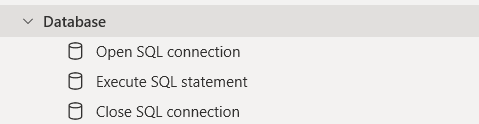
- Open SQL connection: This action is used to open a new connection to a database.
- Execute SQL connection: This action is used to connect to a database and execute a SQL statement or SQL query.
- Close SQL connection: This action is used to close an open connection to a database.
Pre-requisites
- Download and install SQL Database Server.
- Download and install the Microsoft SQL server management tool.
Date and Time Actions in Power Automate Desktop
Creating a flow with Database actions
- Open Power Automate Desktop App.

- Firstly, we need to create a flow. Click on New flow.

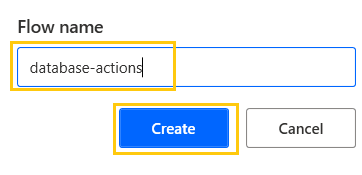
- Create a flow name database-actions in Power Automate Desktop.

- Open Microsoft SQL Server Management tool.

- Add the Server name and click on Connect.

- We are using Database BaseballData. You need to download and import the database.





We are going to create a flow that opens the database "BasketballData", performs the query action on the database, and writes the output in the excel sheet.
Open SQL Connection in Power Automate Desktop
To connect to a database, use the Open SQL Connection action. This action only requires one input: the connection string. The Connection String field specifies all information that is necessary to connect to a database, such as a driver, the database, server names, and the username and password.
SQL actions require a database connection. When the action connects to a database, it stores the connection into a SQL connection variable. To connect to a database, enter the string manually or as a variable.
- From the Actions panel, drag and drop the Open SQL connection action into the workspace. Add the Connection string as "DRIVER={SQL Server}; Server=(local); integrated security =true; Database=BaseballData".

- The output will be stored in the SQLConnection variable. Click on Save.


Execute SQL Connection
Query the database using the Execute SQL Statement action. Alternatively, the action can connect to the database directly, with the method described in the Open SQL Connection action.
- From the Actions panel, drag and drop the Execute SQL statement action into the workspace.
- Under Get connection by select the Connection string and Configure string the action using the already established SQL connection and by setting the SQL connection variable "SQLConnection" that was created by the previous action.
- Add the query, here the query which has been added is:
SELECT TOP (1000) [lahmanID] ,[playerID] ,[managerID] ,[hofID] ,[birthYear] ,[birthMonth] ,
      ,[deathMonth] ,[deathDay] ,[deathCountry] ,[deathState] ,[deathCity] ,[holtzID] ,[bbrefID]
FROM [BaseballData].[dbo].[players]- Timeout is 30 secs. The output will be produced in the QueryResult variable. Click on Save.

- Now, we are going to store the output from the above query in an excel sheet name Basketball. From the Actions panel, drag and drop the Launch Excel action into the workspace. Add the Document path where the file is stored.
- The output will be produced in ExcelInstance. Click on Save.

- To write the data into an excel sheet we use the Write to Excel worksheet. From the Actions panel, drag and drop the Write to Excel worksheet action into the workspace. Add the Excel instance as ExcelInstance, Value to write as QueryResult, and select Write mode as On currently active cell. Click on Save.

- To close the Excel instance drag and drop the Close Excel action from the Actions pane. In Before closing, select Save the document. Click on Save.


Close SQL Connection
To terminate the connection to the database, use the Close SQL Connection action. The SQL connection variable is required.
- From the Actions panel, drag and drop the Close SQL connection action into the workspace. Under SQL connection add the SQLConnection variable. Click on Save.

- This is how our flow looks now:

- Save and Run the flow. We get output in the Basketball.xlsx file.


Recommended Readings
- UI Automation in Power Automate Desktop
- CMD actions in Power Automate Desktop
- OCR Actions in Power Automate Desktop
- Date and Time Actions in Power Automate Desktop
- XML Automation in Power Automate Desktop
- PDF Automation in Power Automate Desktop
- Email Automation in Power Automate Desktop
- Compression Action in Power Automate Desktop
I am Sharvari Raut, having sound knowledge and experience in technical writing. Currently, pursuing my B.Tech in Computer Science and Engineering.
