

Excel Automation in Power Automate Desktop

Working with large amounts of data in Excel is common, especially in large organizations where Excel is used in many departments such as sales, accounting, and staff. Excel spreadsheets contain data in rows and columns, which spread across all worksheets
Entering, processing, and selecting data from an Excel document are the most common algorithmic tasks performed by hand, which means that there are many possible scenarios and cases used to make these tasks work.
For example, consider a situation in which a company receives a list of customers in an Excel document. The structure of the document may differ from the way the company maintains its records. Before a new list can be added to any main file, the data must be rearranged to match the format of the main file.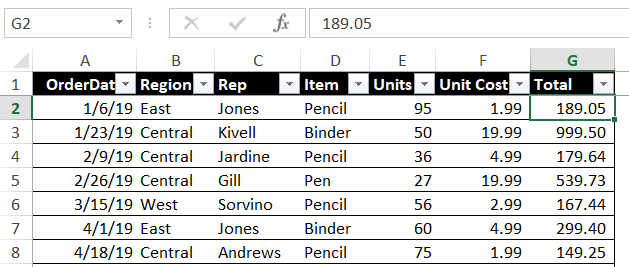
Therefore, an Excel document should be read, rows or columns should be moved to match the main file format, and the data should be copied to the main file to ensure that there are no errors or losses. This task can be done mechanically to ensure that all updates to the main file take place without human intervention and in a flawless manner.
This article demonstrates some of the most common uses of Excel actions by designing a flow that performs Excel-related business functions.
CMD actions in Power Automate Desktop
Creating a flow with Excel Actions
- Create a flow name Excel-automation.

- We have an excel file created named NewEmp.xlsx in the Demo folder.

- Now, to open the Excel file we use Launch Excel action. We have two options to Launch Excel one with a blank document and with open the following document i.e. pre-existing document.

- Select open the following document and add a Document path to it.


Read from Excel Worksheet
- Now, we use the Read from Excel worksheet action to retrieve data. The Excel instance will be automatically generated. We have three opinions here to retrieve the excel data that are: The value of single a cell, Values from a range of cells, and Values from selection.

- Select Values from a range of cells and add Start and End range with respect to columns and rows. Click on Save.

- Add the File path and add the ExcelData in Text to write. Click on Save.

- To close the excel file we use the Close Excel action. Click on Save.

- This is how our flow looks now. It will read data and then it will write the data into a text file.

- We have here the data, which we specified and that has been read by the flow. It's in the form of an Emp.txt file.

- To retrieve the value of a single cell we add the cell start column and start row. Click on Save.

- Save and Run the flow. We get the single-cell contains from cell A1.


Write to Excel Worksheet
- This action is used to write anything into the cell in an excel worksheet. Drag and drop Write to Excel Worksheet action into the workspace. Add Value to write as Shay and mode as On specified cell. Enter the row and column number and click on Save.

- Save and Run the flow. Now, we have the text in the B7 cell.


Insert a row and column into the Excel worksheet
- To insert a row drag and drop the Insert row to Excel worksheet action into the workspace. Add row index as 7. Click on Save.

- To insert a column drag and drop the Insert column to Excel worksheet action into the workspace. Add column index as B. Click on Save.

- Save and Run the flow. Here, in our worksheet, a blank column and row are inserted on the specified index value.


File Actions in Power Automate Desktop
Add new Worksheet
- To add a new worksheet we use this action. Drag and drop the Add new worksheet action into the workspace. Add the name for the worksheet and add the worksheet as the Last worksheet. Click on Save.

- Save and Run the flow. We have our new worksheet created as EmpDetails.


Rename Excel worksheet
- We use this action to rename a worksheet. Drag and drop the Rename Excel worksheet action into the workspace. Add the name of the worksheet and add the new name for the worksheet. Click on Save.

- Save and Run the flow. We have our worksheet name changed to Details.


Delete Excel worksheet
- We use this action to delete a particular worksheet. Drag and drop the Rename Excel worksheet action into the workspace. Add the name of the current worksheet and add the new name for the worksheet. Click on Save.

- Save and Run the flow. The worksheet Details has been deleted.


This Excel automation is quite useful in many cases. Performing tasks related to storing and using the information in Microsoft Excel is essential for many businesses. Power Automate Desktop makes it easier and faster to do such tasks.
Recommended Readings
- File Actions in Power Automate Desktop
- Folder Actions in Power Automate Desktop
- Text Actions in Power Automate Desktop
- Compression Action in Power Automate Desktop
- Switch Case in Power Automate Desktop
- If Else Conditions in Power Automate Desktop
- List Variable in Power Automate Desktop
- Variables in Power Automate Desktop
I am Sharvari Raut, having sound knowledge and experience in technical writing. Currently, pursuing my B.Tech in Computer Science and Engineering.
