

Cucumber with Puppeteer and Javascript
We cannot write the tests using normal English language in programming languages but using the Gherkin language we can write our tests using normal English language.
Gherkin is a normal language and it is independent of all the programming languages; Gherkin language can be used with any programming language.
For example, we can use Gherkin language with Ruby, java, javaScript, and so on.
We can use different tools to parse this gherkin language to invoke specific methods in the programming language and these tools can have any name but most popularly known as cucumber.
Cucumber works based on regular expression, so using these regular expressions, cucumber matches the gherkin file with test files.
When we use test files along with cucumber normally call them step definitions files. These step definitions files will have code that matches with the steps created using the Gherkin language.
So in this article, we are going to see how we can use cucumber JS for our puppeteer with JavaScript.
Installation of Packages for Cucumber Puppeteer
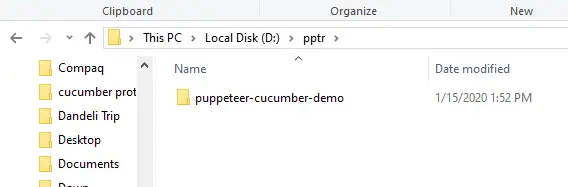
- Create a folder where you wish to create a Cucumber Puppeteer framework (I have created puppeteer-cucumber-demo)
- Open the terminal/CMd or use the terminal from the IDE, I am using the VSCode IDE.

- Initiate the package.json using and provide details ( I am just pressing enter for all fields)
npm init
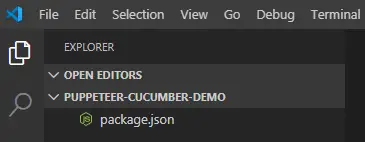
- Once npm init done, You should be able to see package.json file under the main folder
- Install the cucumber package to use the gherkin.
npm install cucumber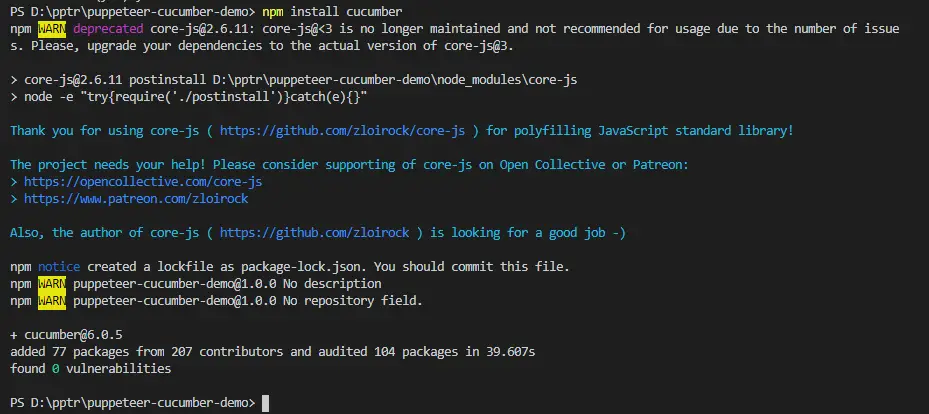
- Install puppeteer if you have not installed it on this folder.
npm install puppeteer
- Install chai library for the assertion purpose
npm install chai - Install the cucumber HTML reporter to create visual reporting
npm install cucumber-html-reporter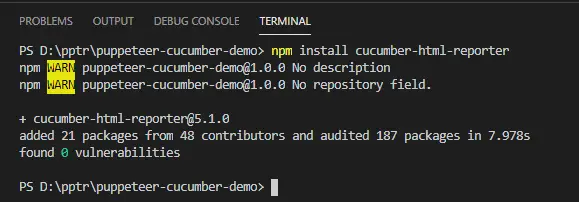
- If the installation is successful then you should be able to see the package.json like this.
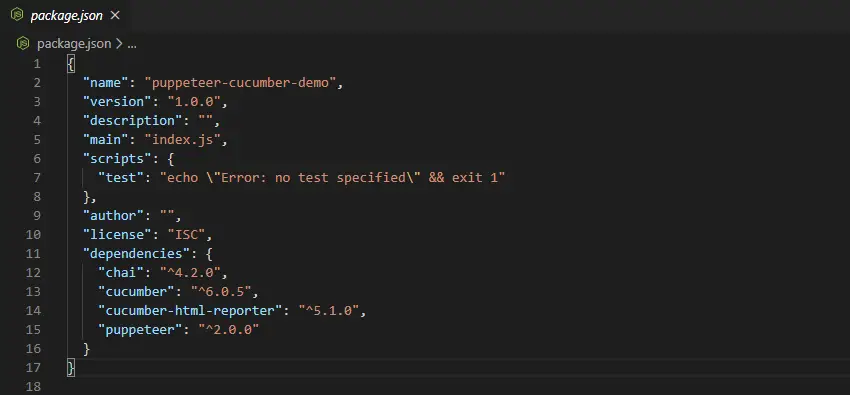
- Edit the package.json file for running the cucumber files; edit the test field under script and add a new field called report next to the test field.
{ "name": "puppeteer-cucumber-demo", "version": "1.0.0", "description": "", "main": "index.js", "scripts": { "test": "cucumber-js -f json:cucumber-report.json", "report": "node report.js" }, "author": "", "license": "ISC", "dependencies": { "chai": "^4.2.0", "cucumber": "^6.0.5", "cucumber-html-reporter": "^5.1.0", "puppeteer": "^2.0.0" } }
Let me explain what we changed and this command will run when we enternpm test
cucumber-js -f json:cucumber-report.json- cucumber-js : run the cucumber
- -f json: Create the cucumber output in JSON format
- :cucumber-report.json : is the file name where the output should go
Report field and this will execute when we enter npm report
- node report.js: run the file called report.js, We will discuss this file once we execute our framework
Feature files in Cucumber Puppeteer
Feature files will have the steps to perform on a particular application, feature files can contain multiple scenarios, the scenario is nothing but a test case and every scenario will contain multiple steps.
Steps will have taken keywords like When, Then, And, Given. And these keywords are case sensitive.
For every step, we have to write our own methods which will be executed while running the feature files, and these methods will have the syntax of When, And, Then.
Let's consider the below requirement: As a user, I should be able to open the browser and open the Google page and then search for Chercher tech and count results.
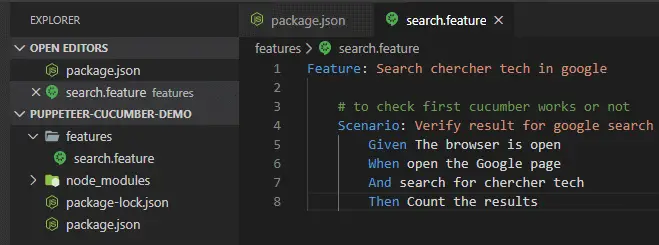
The feature file for the above scenario is:
Feature: Search chercher tech in google
	# to check first cucumber works or not
	Scenario: Verify result for google search
		Given The browser is open
		When open the Google page
		And search for chercher tech
		Then Count the results
Create a folder called features and place the above content in a file called search.feature.
Step definition file
Step definition files will have the code which is equivalent to the steps written on the feature file.
In the step definition file, we will write different functions that have the regular expression matching the steps in the feature file.
The cucumber will identify the relevant regular expressions for the given steps and it will invoke those particular methods.
Create a folder called support under the feature folder, this is where we will place our steps. You can create the steps in two ways.
- Copying the exact details from the feature file and creating steps like below.
Given("The browser is open", async function(){ //todo }) - In a second way, we will run the cucumber code to get the step definitions. so open terminal and type
npm test. this will throw an error saying that few steps are missing.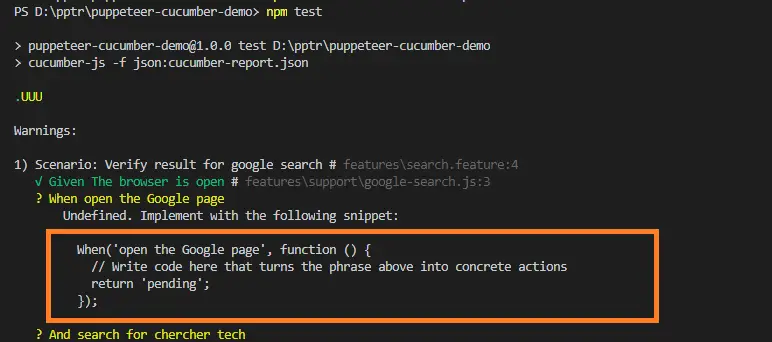
- Obviously, we have to make some changes to the thrown error code.
const {When, Then, And, Given} = require("cucumber") Given("The browser is open", async function(){ }) When('open the Google page', function () { }); When('search for chercher tech', async function () { }); Then('Count the results', async function () { });
Now let me fill in those Given, when, and then; If you have not familiar with the basics of puppeteer the below code might be a little alien to you.
const {When, Then, And, Given} = require("cucumber")
const expect = require("chai")
const puppeteer = require("puppeteer")
var {setDefaultTimeout} = require('cucumber');
setDefaultTimeout(60 * 1000);
Given("The browser is open", async function(){
    this.browser = await puppeteer.launch({headless:false})
    this.page = await this.browser.newPage();
})
When('open the Google page', async function () {
    await this.page.goto("https://google.com")
});
When('search for chercher tech', async function () {
    await this.page.waitForSelector("[name='q']")
    await this.page.type("[name='q']", "chercher tech")
    await this.page.click("[name='btnK']")
});
Then('Count the results', async function () {
    var linkTexts = await this.page.$$eval(".plan-features a",
                elements=> elements.map(item=>item.textContent))
    // prints a array of text
    console.log(linkTexts.length)
    //uncomment close statement if you want
    //await this.browser.close()
});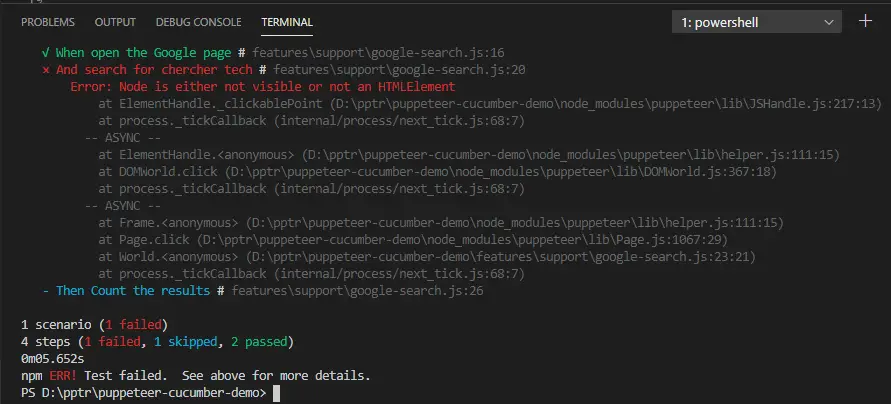
Here we have the test summary in the console, you may also get a failure message because of the auto-suggestion overlay. This test summary will not be of much use if we want to send it to other team members.
Cucumber report with Puppeteer
Cucumber reporting will create the HTML report based on the output of the cucumber execution. After the cucumber executing you can see a file under configured folder. (We have configured the output to present in the root directory.)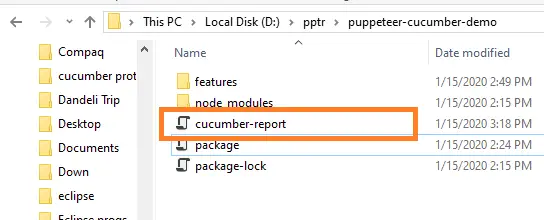
Now let's create a report.js file in the same directory as cucumber-report. Place the below code into the report.js file.
const reporter = require("cucumber-html-reporter")
const options ={
     theme:'bootstrap',
     jsonFile:'cucumber-report.json',
     output:'cucumber-html-result.html',
     reportSuiteAsScenaros:true,
     launchReport:false,
}
reporter.generate(options)
Let's understand the above parameters:
- theme:'bootstrap' : What theme we want to use, here we are using bootstrap so that it will be responsive
- jsonFile:'cucumber-report.json' : Where the source cucumber output file is present (here it is in the same folder so we are providing the name)
- output:'cucumber-html-result.html' : Where do we want the output HTML to present along with the filename
- reportSuiteAsScenaros:true : Not sure
- launchReport:false : Whether we want to launch the report once it is generated.
Now run below npm command to generate the report.
npm run report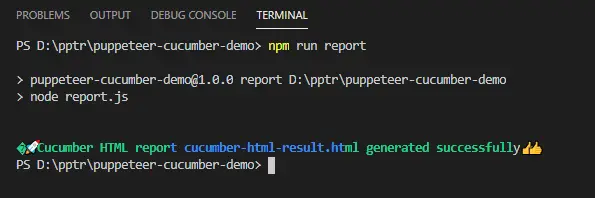
Go to the root folder and open the HTML file.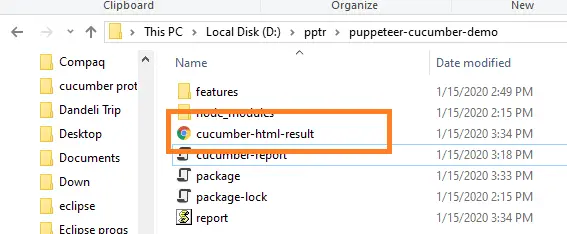
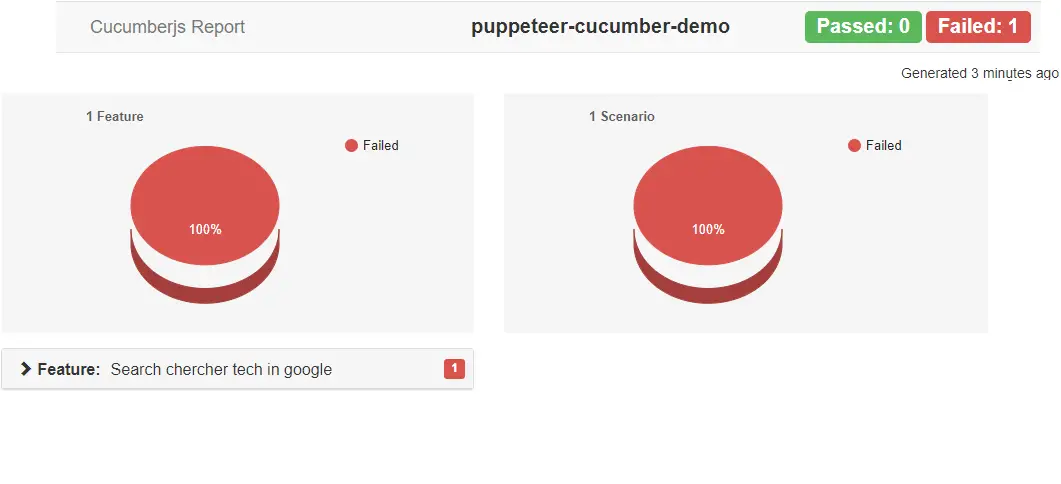
Thats all
Recommended Readings
I am Pavankumar, Having 8.5 years of experience currently working in Video/Live Analytics project.
