

Handling iFrames / Frames with selenium python
What is iFrame ?
Frame/iFrame is nothing but another web element in the HTML page, which displays another part of the webpage.
<iframe id="ifr" name="demo" src="demo.html" height="200" width="300"></iframe>We can handle frames/iframes present in the webpage using driver.switch_to Command in selenium python.
Handle Frames and Iframes in python selenium:
The below are the few steps you need to follow to handle the iframes/frames in selenium python.
- Ensure Frame is present (before writing automation code)
- Find the Frame
- Switch to the Frame
- Perform Operations
- Switch back to page level
HTML5 does not support Frames but supports iFrames. Below the frame, the page is present at: https://chercher.tech/practice/frames
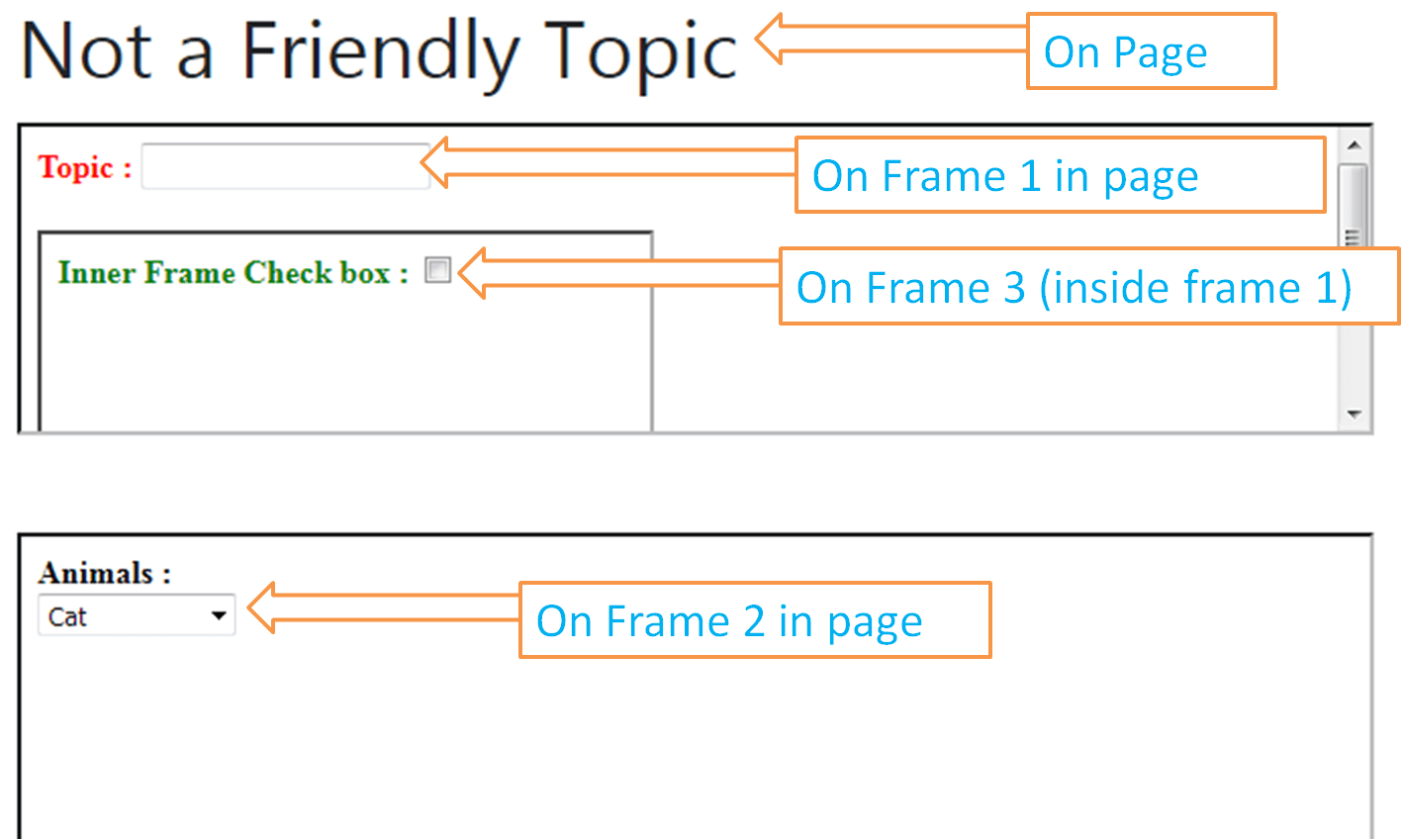
Presence of Frame in selenium python
The tester needs to check whether an element is inside an iframe/frame or just on a webpage. If the element is inside a frame, then we have to switch into the frame to access the element.
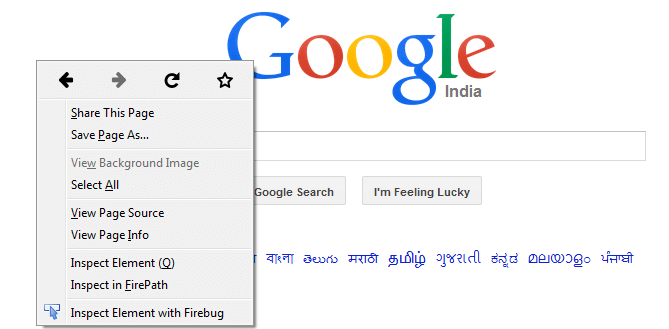
Right-click on the page > You should find This Frame Option, if this option is present then there is an iframe else there is no iframe
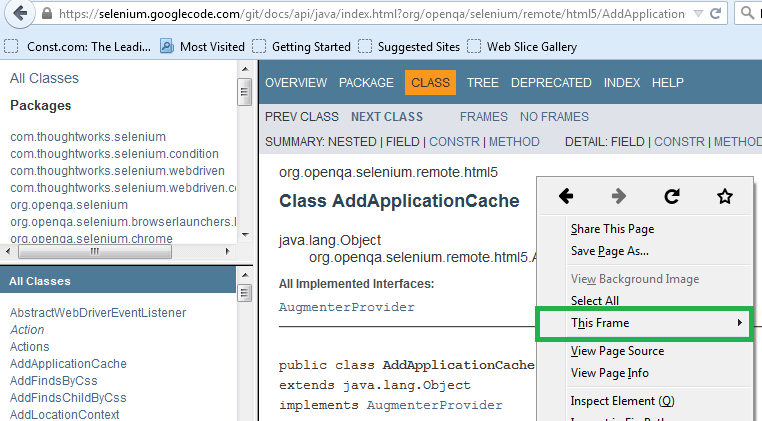
3. Webpage without a frame.
How to find iframe/frame in selenium python
We can find the iframe/frame using right-click in manual testing, finding the iframe/frame in selenium is a little tricky.
Below are the ways to find the iframe/frame:
- Using ID
- Using Name
- Using Element (widely used)
- Using Index
Using ID and Name are looks similar in syntax as these two are overloaded methods, find the examples below.
- Using ID: We can find the frame using the Id attribute present in the iframe/frame.
- Using Name : We can find the frame using the name attribute present in the iframe/frame
<iframe id="ifr" name="demo" src="demo.html" height="200" width="300"></iframe>
# switchong to a rame which has id as 'ifr'
driver.switch_to_frame("ifr")
# switching to a frame which has name='demo'
driver.switch_to_frame("demo")- Using Element : Most of the time there will be multiple iframe/frame and few of them may share the same id and name, so in such scenarios, we cannot use id or name for finding the frame. To find the iframe/frame uniquely, we have to find it as an element, the way we follow for normal elements.
Here we can use locators ( except id, name, as we used already) like classname, XPath CSS. We cannot use link text and partial link text as these two are only applicable for anchor tag <a>.
Lets consider the below iframes, and xpath for this iframe would be :
Xpath for 1st iFrame : //iframe[@src='demo.html']
Xpath for 2nd iFrame : //iframe[@class='second']
<iframe id="ifr" name="demo" src="demo.html" height="200" width="300"></iframe>
<iframe id="ifr" name="demo" class='second' src="width.html" height="200" width="300"></iframe>
<iframe id="ifr" name="demo" src="width.html" height="200" width="300"></iframe>
# switch to 1st frame
driver.switch_to_frame("//iframe[@src='demo.html']")
Using Index : Selenium python assigns an index to every frame present on the page, using the index is the least preferred way of finding the frame as in future frame position may change when development introduce another frame in between
# switch to 1st frame
driver.switch_to_frame(1)Handle single iFrame in selenium python
If we want to access any element inside an iframe in selenium python, we must find and switch to that iframe and access the element. Selenium python throws NoSuchElementFound Exception unless we switch to the iframe.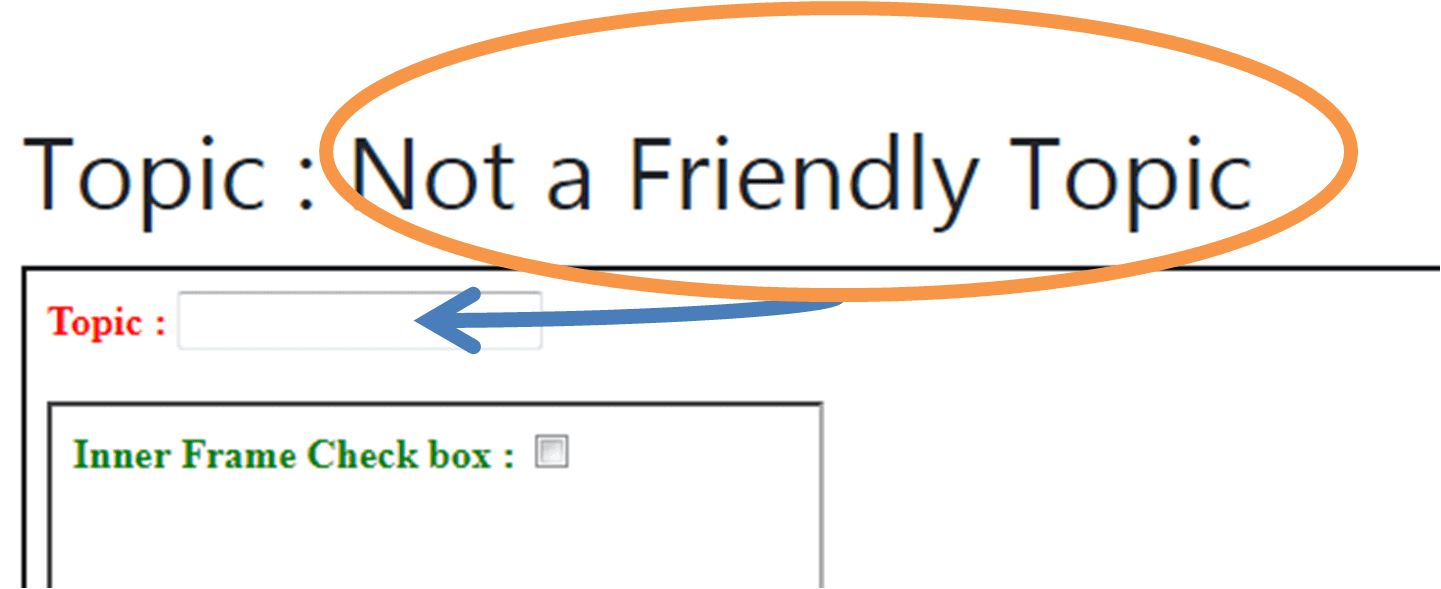
Scenario : Fetch the value from the Topic (page level) and write it to the topic text bar present in iframe 1
Page Url : https://chercher.tech/practice/frames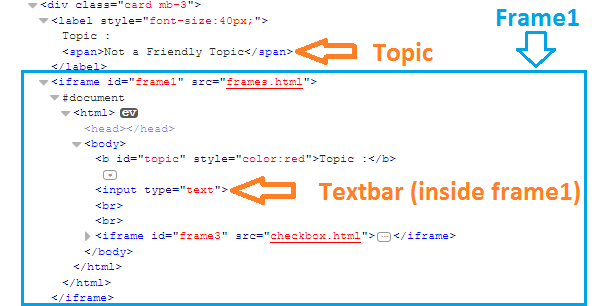
Steps to solve the scenario : 1. Open the browser and navigate to : https://chercher.tech/practice/frames
# set the geckodriver.exe property an open browser
driver = webdriver.Chrome(executable_path=r'D:/PATH/chromedriver.exe')
driver.implicitly_wait(30);
# open webpage
driver.get("https://chercher.tech/practice/frames");
2. Get the text from the Topic element and store it in a string.
# store the text value
textValue = find_element_by_xpath("//label/span").text
3. Switch to the Frame1; the frame has attribute id='frame1' and which is unique so we can use id way switching to the frame.
# switch to frame1
driver.switch_to_frame("frame1");
4. Find the Text bar in frame1 and enter the stored text.
# set the value of the textbar to the value stored
driver.find_element_by_xpath("//input[@type='text']".send_keys(textValue);
Complete program for single frame handling
import unittest
from selenium import webdriver
class Test(unittest.TestCase):
	def test_open_alerts(self):
		driver = webdriver.Chrome(executable_path=r'D:/PATH/chromedriver.exe')
		driver.implicitlyWait(30);
		# open webpage
		driver.get("https://chercher.tech/practice/frames");
		# store the text value
		textValue = driver.find_element_by_xpath("//label/span").text
		# switch to frame1
		driver.switch_to_frame("frame1");
		# set the value of the textbar to the value stored
		driver.find_element_by_xpath("//input[@type='text']".send_keys(textValue);
if __name__ == "__main__":
unittest.main()Nested iFrame in selenium python
Sometimes we will have multiple and nested iframes on a webpage. If we have nested iframes, then we have to switch to iframe inside the iframe. We can access only the content of the frame when we are inside a frame; we cannot access outside the frame or inside any other frame.
Scenario : Check the checkbox present in the iframe 3, iframe 3 is present inside iframe 1.
Page Url : https://chercher.tech/practice/frames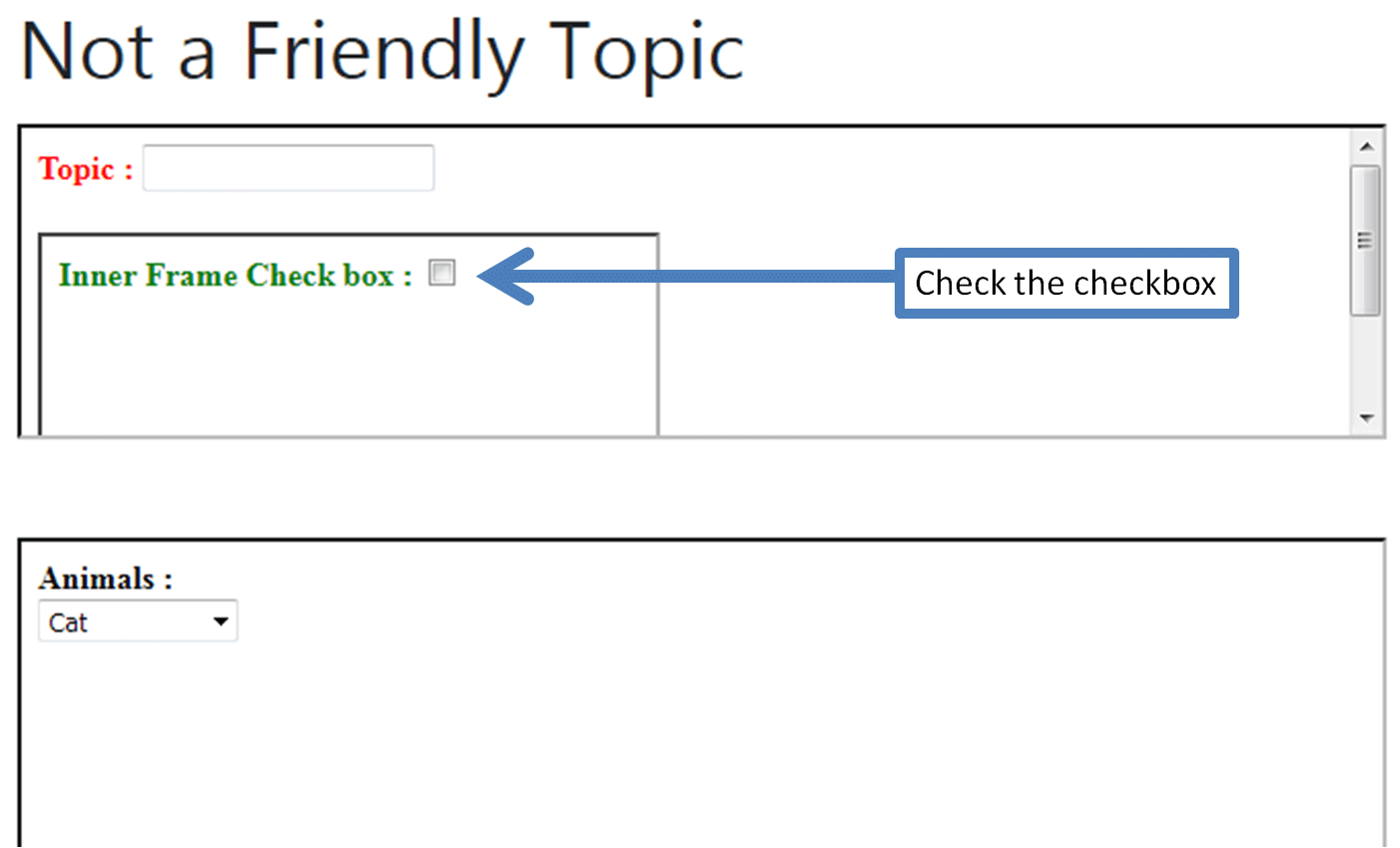
The solution to the scenario : Ignoring routine steps (open browser, page, wait)
1. Find the iframe1 and store it as a web element.
# find the frame1 and store it in webelement
frame1 = driver.find_element_by_id("frame1"));
2. Switch to iframe 1 using switch_to_frame() command
# switch to iframe1
driver.switch_to_frame(frame1);
3. Find the iframe 3 and switch to it.
# find the frame 3
frame3 = driver.find_element_by_xpath("//iframe[@id='frame3']");
# switch to frame 3
driver.switch_to_frame(frame3);
4. Find the Checkbox and click it if it is not already checked.
# find the checkbox
checkbox = driver.find_element_by_xpath("//input[@type='checkbox']");
# if check box is not selected then click the checkbox
if( not checkbox.is_selected()):
	checkbox.click();
Complete program to handle nested text bar.
class NestedFrame(unittest.TestCase):
	def test_frames(self):
		driver = webdriver.Chrome(executable_path=r'D:/PATH/chromedriver.exe')
		driver.implicitlyWait(30);
		# open webpage
		driver.get("https://chercher.tech/practice/frames");
		# find the frame1 and store it in webelement
		frame1 = driver.find_element_by_id("frame1");
		# switch to frame1
		driver.switch_to_frame(frame1);
		# find the frame 3
		frame3 = driver.find_element_by_xpath("//iframe[@id='frame3']");
		# switch to frame 3
		driver.switch_to_frame(frame3);
		# find the checkbox
		checkbox = driver.find_element_by_xpath("//input[@type='checkbox']");
		# if check box is not selected then click the checkbox
		if( not checkbox.is_selected()):
checkbox.click();Navigate to Parent Frame
Switch to Parent Frame : switch_to.parent_frame() method in selenium exits the control from the current frame. The outer position could be a frame or page level.
After performing a particular task, we have to move out of the frame; otherwise, we cannot access the elements outside the frame.
Scenario :
1. Check the checkbox present in the iframe 3, iframe 3 is present inside iframe 1,
2. After checking the checkbox, move back to iframe 1 and enter "selenium" text in the topic text bar
3. Now move back to page level and compare the topic(header) text is not equal to "selenium python"
Page Url : https://chercher.tech/practice/frames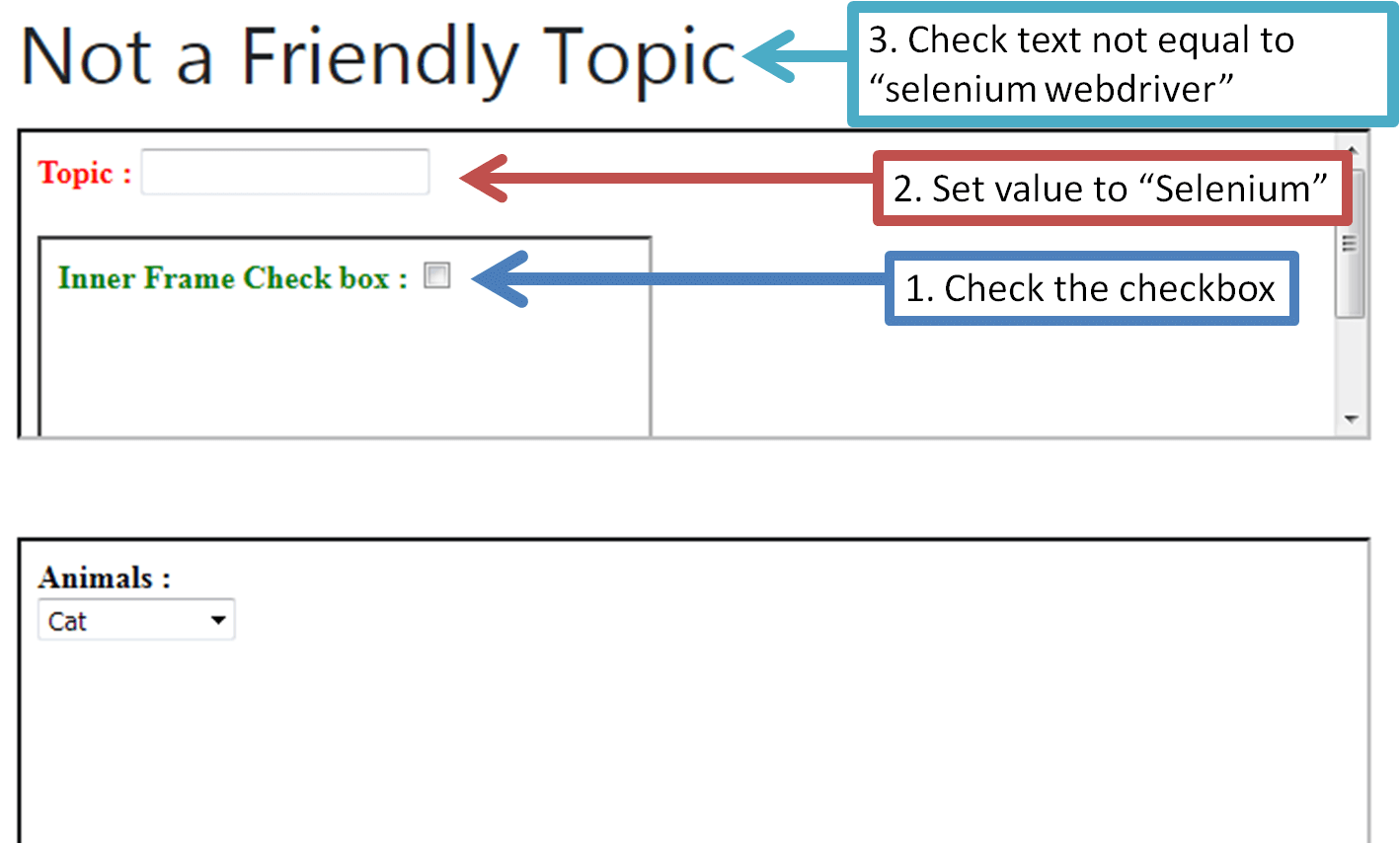
The solution to the Scenario : skipping a few steps that were covered in the previous scenario.
1. Switch to iframe 1 and switch to iframe 3, check the checkbox
2. Now we have to navigate back to frame 1 by using driver.switch_to.parent_frame() method
# navigate to parent frame, which is iframe 1
driver.switch_to.parent_frame();
3. Find the text bar and enter the "selenium" text" in it.
# set the value of the textbar to the value stored
driver.find_element_by_xpath("//input[@type='text']").send_keys("selenium");
4. Now we have to navigate back to the page by using driver.switch_to.parent_frame() method
# navigate to parent, which is page
driver.switch_to.parent_frame();
5. Find the topic header element and fetch the text.
# store the text value
textValue = driver.find_element_by_xpath("//label/span").text;
6. Compare the topic text with the expected value "selenium python."
if(textValue == ("selenium python"):
	print("Topic value is equal to 'selenium python'");
Complete program to use parent frame method
class ParentFrame(unittest.TestCase):
	def test_frames(self):
		driver = webdriver.Chrome(executable_path=r'D:/PATH/chromedriver.exe')
		driver.implicitlyWait(30);
		# open webpage
		driver.get("https://chercher.tech/practice/frames");
		//find the frame1 and store it in webelement
		frame1 = driver.find_element_by_id("frame1"));
		# switch to frame1
		driver.switch_to_frame(frame1);
		# find the frame 3
		frame3 = driver.find_element_by_xpath("//iframe[@id='frame3']"));
		# switch to frame 3
		driver.switch_to_frame(frame3);
		# find the checkbox
		checkbox = driver.find_element_by_xpath("//input[@type='checkbox']"));
		# if check box is not selected then click the checkbox
		if( not checkbox.is_selected()):
			checkbox.click();
		# navigate to parent frame, which is frame 1
		driver.switch_to.parent_frame();
		# set the value of the textbar to the value stored
		driver.find_element_by_xpath("//input[@type='text']").send_keys("selenium");
		# navigate to parent, which is page
		driver.switch_to.parent_frame();
		# store the text value
		textValue = driver.find_element_by_xpath("//label/span").text;
		//verify the value matches or not
		if(textValue == ("selenium webdriver"):
			print("Topic value is equal to 'selenium webdriver'");
Default Content
Once we reach page level we cannot access any elements inside the iframe unless we switch to it.
Scenario : Check the checkbox(frame 3), and select the 'Avatar' option from the Animals dropdown(frame 2).
Page Url : https://chercher.tech/practice/frames 
The solution to the scenario :
1. Switch to frame 1 and switch to frame 3
2. Check the checkbox
3. Now exit from all the frames using
# navigate to page level
driver.switch_to_default_content();
4. Switch to iframe 2
//switch to frame2
driver.switch_to_frame("frame2");
5. Find the Animals dropdown and store it in type variable.
//find the dropdown
dropdown = driver.find_element_by_tag_name("select"));
6. Create an object for Select class, and call select_by_visible_text() function from the Select Class object.
//Create object for select class
sel = new Select(dropdown);
//select the 'avatar' option
sel.select_by_visible_text("Avatar");
Complete program for default content in selenium
class DefaultContent(unittest.TestCase):
	def test_frames(self):
		driver = webdriver.Chrome(executable_path=r'D:/PATH/chromedriver.exe')
		driver.implicitlyWait(30);
		# open webpage
		driver.get("https://chercher.tech/practice/frames");
		//find the frame1 and store it in webelement
		frame1 = driver.find_element_by_id("frame1");
		# switch to frame1
		driver.switch_to_frame(frame1);
		# find the frame 3
		frame3 = driver.find_element_by_xpath("//iframe[@id='frame3']");
		# switch to frame 3
		driver.switch_to_frame(frame3);
		# find the checkbox
		checkbox = driver.find_element_by_xpath("//input[@type='checkbox']");
		# if check box is not selected then click the checkbox
		if( not checkbox.is_selected()):
			checkbox.click();
		# navigate to page level
		driver.switch_to_default_content();
		//switch to frame2
		driver.switch_to_frame("frame2");
		//find the dropdown
		dropdown = driver.find_element_by_tag_name("select");
		//Create object for select class
		sel = new Select(dropdown);
		//select the 'avatar' option
		sel.select_by_visible_text("Avatar");
We can write the above program in the switch to parent Frame way as well
class PageLevelParent(unittest.TestCase):
	def test_frames(self):
		driver = webdriver.Chrome(executable_path=r'D:/PATH/chromedriver.exe')
		driver.implicitlyWait(30);
		# open webpage
		driver.get("https://chercher.tech/practice/frames");
		//find the frame1 and store it in webelement
		frame1 = driver.find_element_by_id("frame1");
		# switch to frame1
		driver.switch_to_frame(frame1);
		# find the frame 3
		frame3 = driver.find_element_by_xpath("//iframe[@id='frame3']");
		# switch to frame 3
		driver.switch_to_frame(frame3);
		# find the checkbox
		checkbox = driver.find_element_by_xpath("//input[@type='checkbox']");
		# if check box is not selected then click the checkbox
		if( not checkbox.is_selected()):
			checkbox.click();
		# navigate to parent frame, which is frame 1
		driver.switch_to.parent_frame();
		# set the value of the textbar to the value stored
		driver.find_element_by_xpath("//input[@type='text']").send_keys("selenium");
		# navigate to parent, which is page
		driver.switch_to.parent_frame();
		# store the text value
		textValue = driver.find_element_by_xpath("//label/span").text;
		if(textValue == ("selenium webdriver"):
			print("Topic value is equal to 'selenium webdriver'");
		# swicth to frame2
		driver.switch_to_frame("frame2");
		# find the dropdown
		dropdown = driver.find_element_by_tag_name("select");
		# Create object for select class
		sel = new Select(dropdown);
		# select the 'avatar' option
		sel.select_by_visible_text("Avatar");
Possible Routes of iFrame Navigation
The below image explains the possible routes of the iFrame navigation. 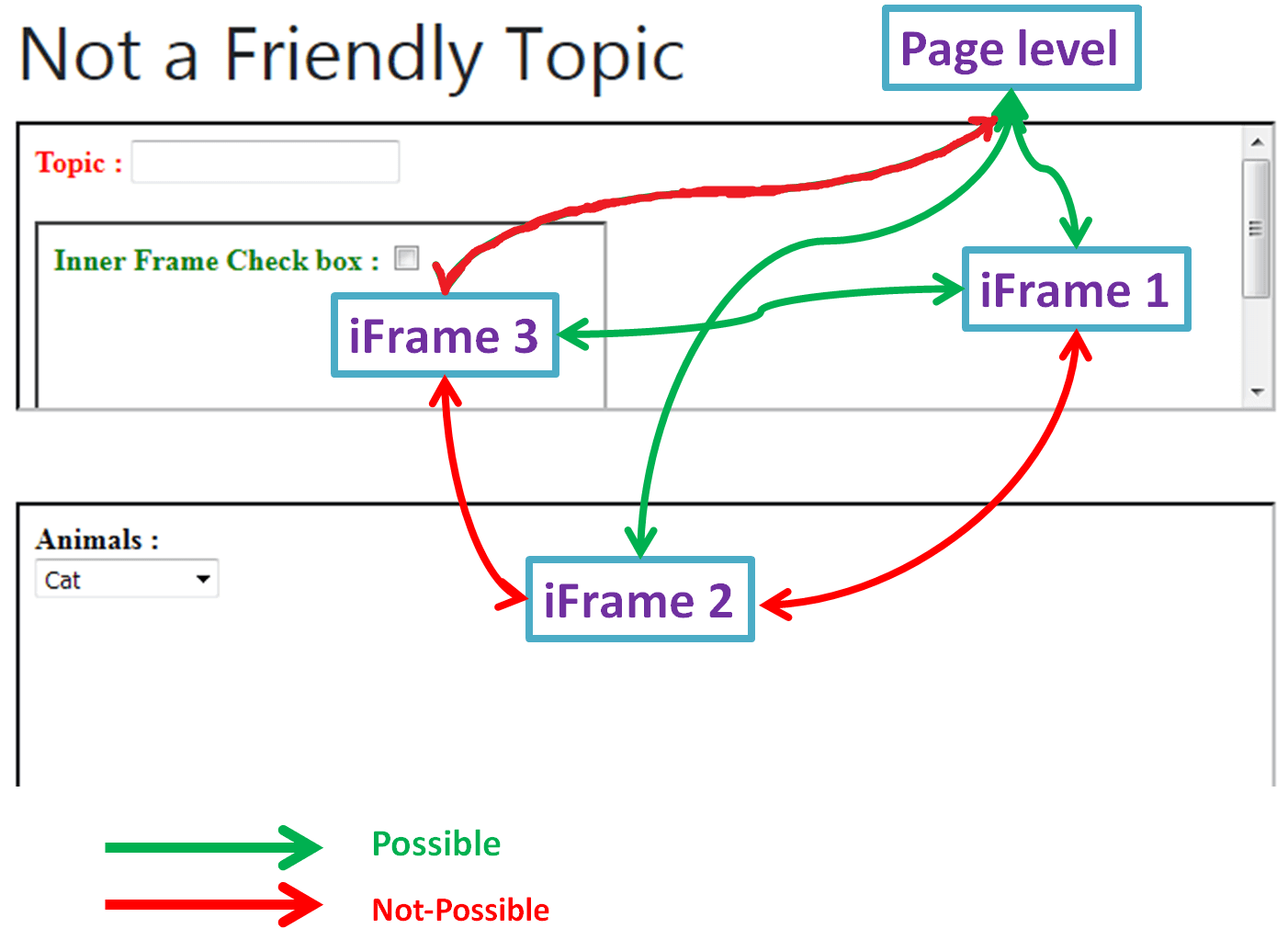
Recommended Readings
- Multiple Windows in selenium python
- Capture screenshot using Python Selenium WebDriver
- Mouse & Keyboard actions Python Selenium
- Exceptions in Selenium Python
- Popups in Selenium Python | Hidden Div | Auth popups
- Dropdowns in Python Selenium | Select
- TestResult Listeners in Unittest python Selenium
- Loading tests to suite and running in Python Selenium
I am Pavankumar, Having 8.5 years of experience currently working in Video/Live Analytics project.
