

Pop-Ups in Selenium Python bindings
In HTML pages, we have different kinds of pop-ups, we will discuss them in this tutorial. Different popups will have different properties.
Types of Pop-Ups :
- Alert Pop Up
- Confirmation Pop Up
- Authentication Pop Up
- Hidden-Division Pop Up
- Calendar Pop Up
- Download Pop UP
- Upload Pop Up
We have a different section for Alert and Confirmation Pop-Ups, so in this page, we are going to discuss how to handle remaining Pop-Ups in selenium python bindings
Authentication Pop Up with Python Selenium
When we open password-protected pages, we tend to get Authentication pop up. Authentication pop up will have username and password fields, the UI look of the pop up may vary from browser to browser
Visit URL selenium python Auth : https://chercher.tech/auth, the site expects you to provide credentials
Credentials :
username - selenium
password - webdriver
Authentication Popup : 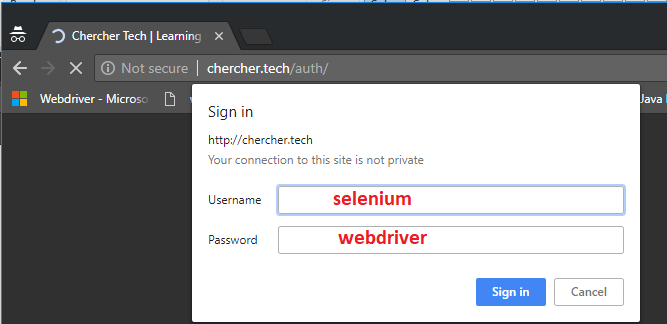
Properties of the Authentication Pop up :
- Pop up displayed on Page load
- We can move the pop up (except in chrome)
- We cannot inspect the pop up with browser inspection tools
- The look varies from browser to browser
The solution to Authentication Pop Up :
We have to pass the user name and password along with the URL to handle the authentication pop in selenium python. Please find the syntax to pass the username and password
driver.get("protocol://Usename:[email protected] Address");Protocols: Http, Https, Ftp,...
To Access the https://chercher.tech/auth page you need to pass username and password like below.
driver.get("https://selenium:[email protected]/auth");
Complete program to handle Authentication popup
import unittest
from selenium import webdriver
class Test(unittest.TestCase):
    def test_authentication_popup(self):
        driver = webdriver.Chrome(executable_path=r'D:PATHchromedriver.exe');
        driver.implicitly_wait(30)
        # open webpage
        driver.get("https://selenium:[email protected]/auth");
        # verify the title
        if(driver.title == "Authentication Successful"):
            System.out.println("Test Passed");
        else:
            System.out.println("Test failed");
if __name__ == "__main__":
    unittest.main()
If login is successful you will see the below page on the browser.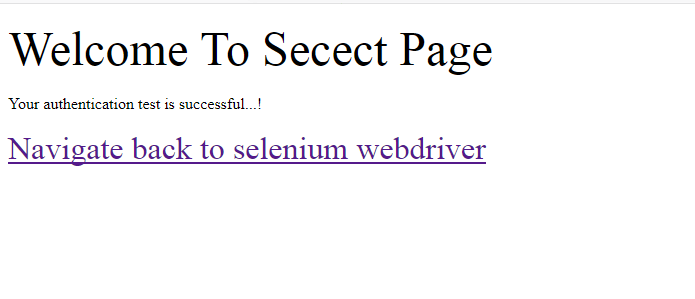
Limitations :
- Does not work for the HTTPS protocol
- It does not work when the username or password contains special characters like : '@' , ':'
Hidden division Pop Up with Python Selenium
Hidden division pop is nothing but HTML code that is hidden initially, hidden division pop up also known as dialog or overlay. The overlay is triggered when an application user performs certain tasks like clicking a button, submitting the form, or on page load...
Examples :
- Calendar Popups
- Contact forms
- Error and success Messages
Properties of Hidden division Pop up :
- Cannot be moved here and there
- We can inspect the overlay
- This is not a javaScript popup
- We can resize and customize the content of the pop-up
- If the content is more than the pop-up size, pop shows a scroll bar
- When hidden division pop is opened, pop takes the focus from the application.
- When pop up is closed, focus automatically goes to the application
- Hidden division popup could be nested i.e a hidden division pop can have another hidden division pop up
- Hidden division pop can hold other pop-ups/ alerts on it.
Handle Hidden division Pop Up :
1. Navigate to : https://chercher.tech/practice/hidden-division-popup
2. Click on the View Pop-Up button
3. Application opens a Model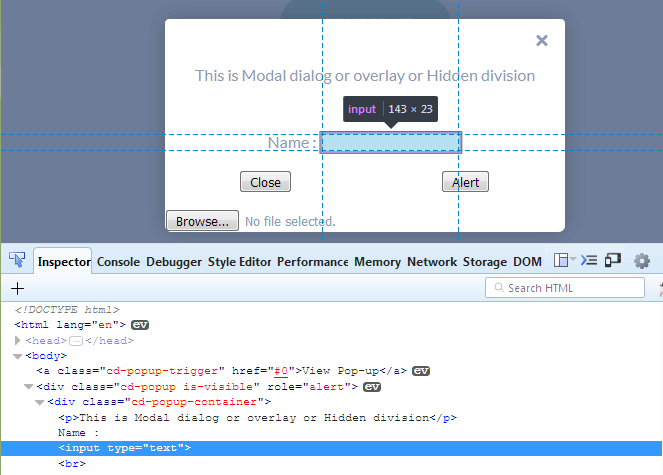
4. Write XPath for the Name text bar : //input[@type='text']
5. Send text for the Name, using sendKyes in selenium.
6. No Special Operation required to handle hidden division popup.
An example program for handling hidden division pop up in selenium python
import unittest
from selenium import webdriver
class Test(unittest.TestCase):
    def test_authentication_popup(self):
        driver = webdriver.Chrome(executable_path=r'D:PATHchromedriver.exe');
        driver.implicitly_wait(30)
        driver.get("https://chercher.tech/practice/hidden-division-popup");
        driver.find_element_by_class_name("cd-popup-trigger")
        # send text to Name field on overlay
        driver.find_element_by_xpath("//input[@type='text']").send_keys("Hidden Division Text");
if __name__ == "__main__":
    unittest.main()
Even though pop up content is present but pop is not present on UI until we click a button, for this reason, it is called a hidden division popup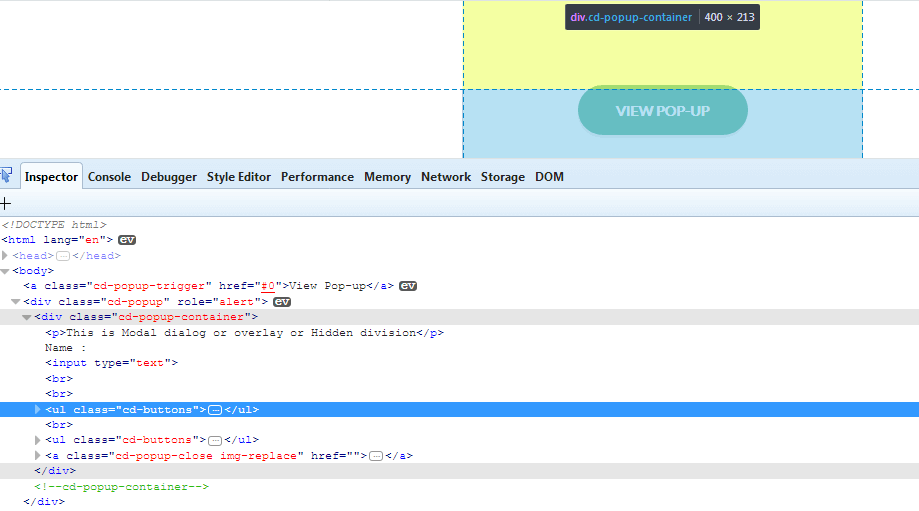
We cannot perform an operation on the webpage until we close the pop up if we try to access selenium throws
Recommended Readings
- Alerts in selenium python
- Iframes in selenium python
- Multiple Windows in selenium python
- Capture screenshot using Python Selenium WebDriver
- TestResult Listeners in Unittest python Selenium
- Loading tests to suite and running in Python Selenium
- Assertions in unittest python with selenium
- Get Text Attribute CSS value & click Operations in Python Selenium
I am Pavankumar, Having 8.5 years of experience currently working in Video/Live Analytics project.
